

What is an internal connection?
An internal connection is scoped to a single Notion workspace. Only members of that workspace can use it. Internal connections are ideal for team-owned automations and workflows — things like syncing data from external tools, sending notifications when pages change, or powering internal dashboards. Internal connections use a static credential called an internal connection API token. There’s no OAuth flow to implement — you get a token immediately when you create the connection, and you use that same token for every API request. If you want a token that acts as your own Notion user for a script, CLI workflow, Worker, or trusted tool, use a personal access token instead. PATs use the creator’s page permissions instead of a separate bot’s page permissions. In this guide, you’ll learn:- How internal connection permissions work (and how they differ from public connections)
- How to create an internal connection and share pages with it
- How to authenticate API requests using your API token
How permissions work
An internal connection operates as its own bot user. It is not tied to any specific workspace member. This means:- Permissions belong to the connection, not to a person. When a page is shared with the connection, the connection itself has access — regardless of which workspace member shared it.
- Access is inherited. Sharing a parent page with the connection grants access to all of its child pages as well.
- Access persists independently of users. If the user who shared a page leaves the workspace, the connection retains access to that page.
- Any Workspace Owner can see the connection. All internal connections are visible in the Developer portal to every Workspace Owner in the workspace, including connections created by others.
Creating an internal connection
You must be a Workspace Owner to create a connection.1
Navigate to the Developer portal.
2
In the Build section of the sidebar, select Internal connections.
3
Click Create a new connection, enter a connection name, and choose the workspace where the connection can be installed.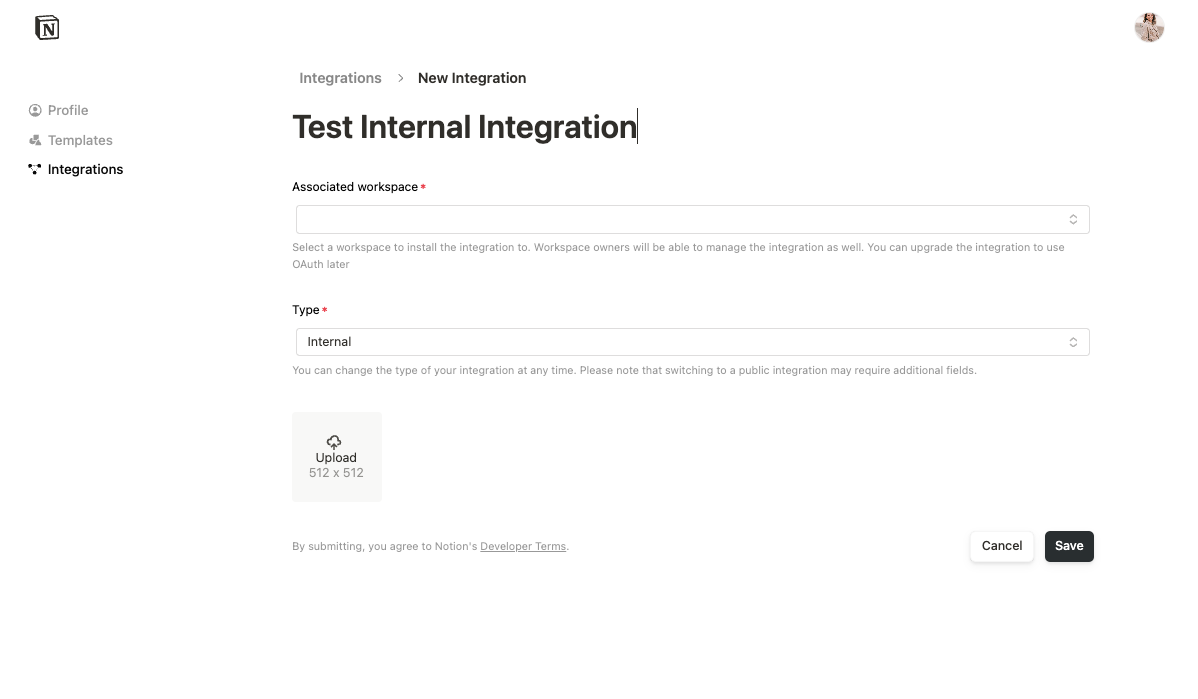
4
After creation, visit the Configuration tab to retrieve your API token.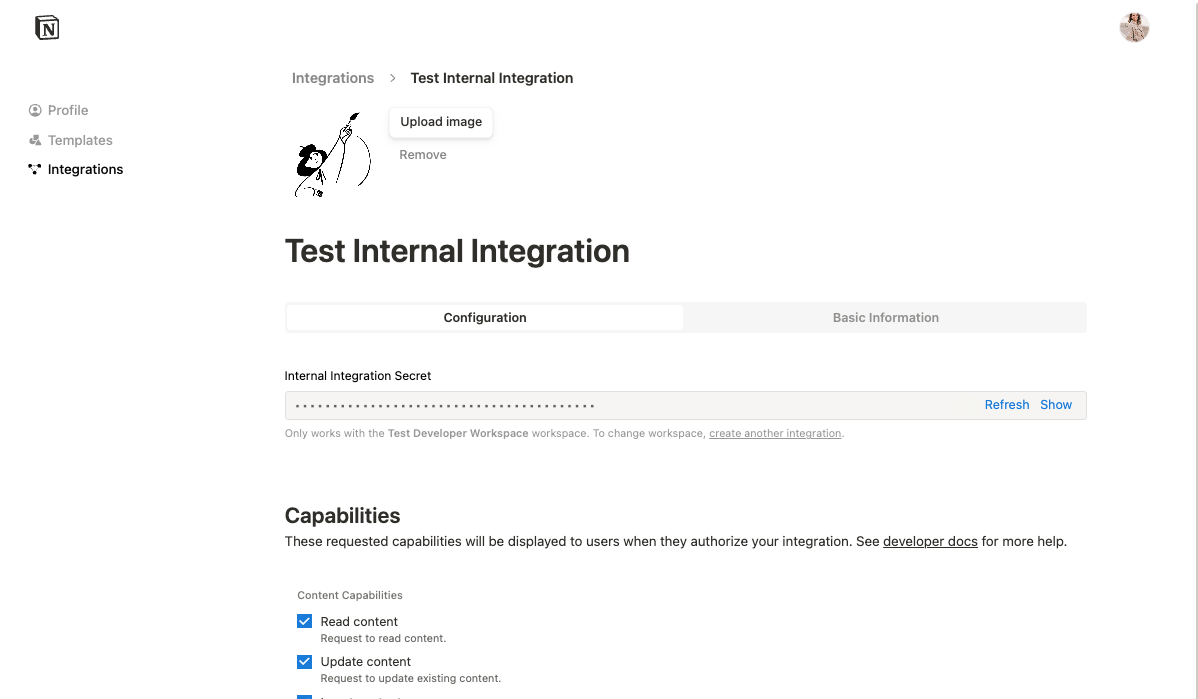
Granting page access
Before your connection can access any data, it must be explicitly granted access to pages or databases. There are two ways to do this.From the Developer portal
The connection owner can manage access directly from the Content access tab in the Developer portal. This is the quickest way to get started after creating a connection.1
Open your connection in the Developer portal.
2
Click the Content access tab.
3
Click Edit access, then select the pages and databases you want the connection to access.
From the Notion UI
Workspace members can also share individual pages with the connection from within Notion.1
Open a Notion page you want the connection to access.
2
Click the ••• menu in the top-right corner of the page.
3
Select Connections, then click + Add connection.
4
Search for your connection and select it.
5
Confirm the connection can access the page and all of its child pages.
Authentication
Internal connections authenticate every API request using the API token retrieved from the Configuration tab. Include the token in theAuthorization header:
Next steps
Getting started
Build your first connection with a hands-on tutorial.

API reference
Explore all available endpoints.