

Overview
Pages are where users write everything from quick notes, to shared documents, to curated landing pages in Notion. Connections can help users turn Notion into the single source of truth by syndicating content or help users gather, connect, and visualize content inside Notion. In this guide, you’ll learn about how the building blocks of page content are represented in the API and what you can do with them. By the end, you’ll be able to create new pages with content, read content from other pages, and add blocks to existing pages.Page content versus properties
In general, page properties are best for capturing structured information such as a due date, a category, or a relationship to another page. Page content is best for looser structures or free form content. Page content is where users compose their thoughts or tell a story. Page properties are where users capture data and build systems. Your connection should aim to use each in the way users expect.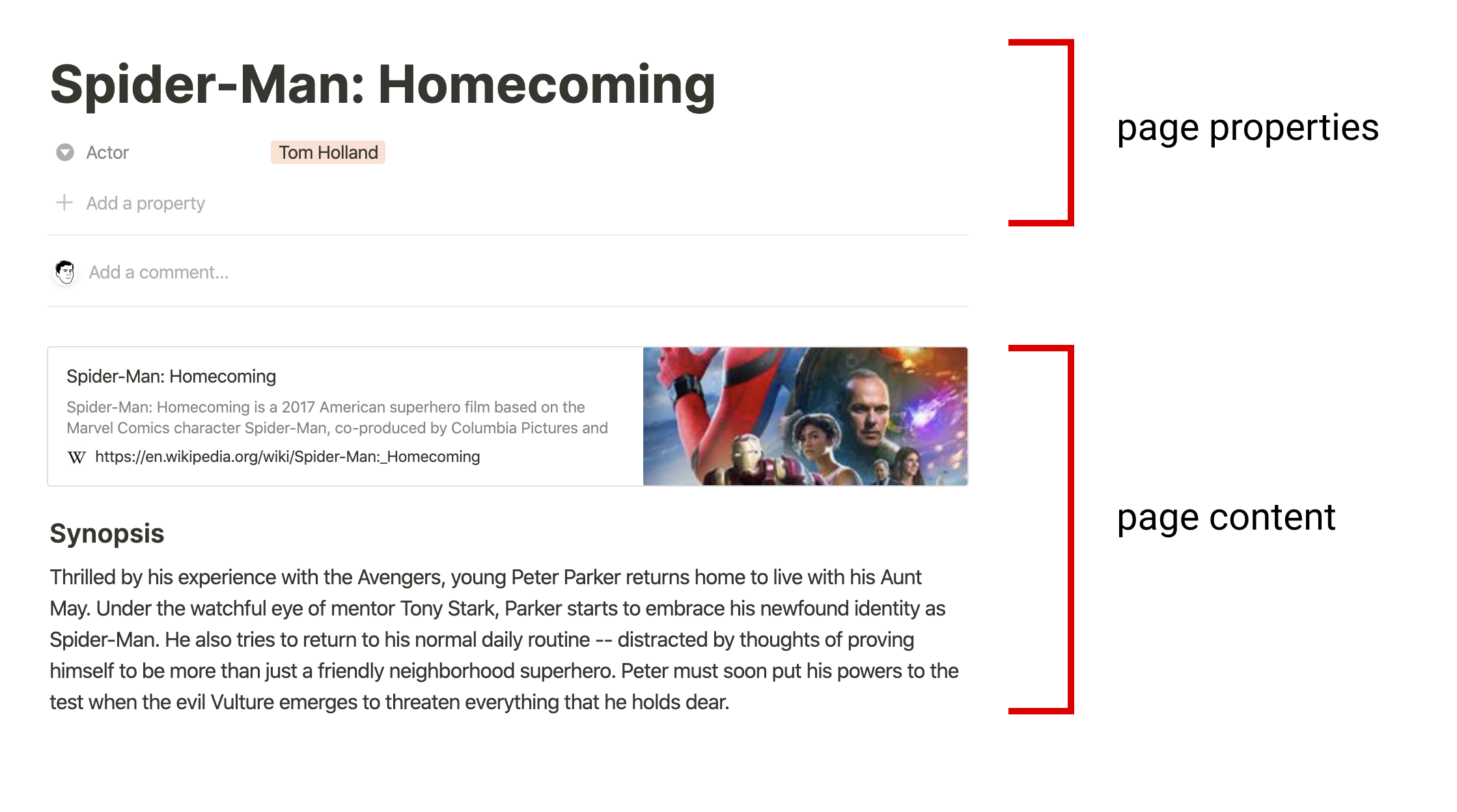
Visualizing page properties versus page content
Modeling content as blocks
A page’s content is represented by a list of block objects. These blocks are referred to as the page’s children. Each block has a type, such as a paragraph, a heading, or an image. Some types of blocks, such as a toggle list, have children of their own. Let’s start with a simple example, a paragraph block:object, type, created_time, last_edited_time, and has_children. In addition, it contains type-specific information inside the paragraph property. Paragraph blocks have a rich_text property. Other block types have different type-specific properties.
Now let’s look at an example where the block has child blocks: a paragraph followed by an indented todo block:
has_children property is true. Only some block types, like paragraph blocks, support children.
Pages are also blocksPages are a special kind of block, but they have children like many other block types. When retrieving a list of child blocks, you can use the page ID as a block ID.When a child page appears inside another page, it’s represented as a
child_page block, which does not have children. You should think of this as a reference to the page block.Rich text
In the previous block examples, the value of therich_text property is a list of rich text objects. Rich text objects can describe more than a simple string - the object includes style information, links, mentions, and more.
Let’s look at a simple example that just contains the words “Grocery List”:
"text", and it has additional configuration related to that type in the text property. Other information that does not depend on the type, such as annotations, plain_text, and href, are at the top level of the rich text object.
Rich text is used both in page content and inside page property values.
Creating a page with content
Pages can be created with child blocks using the create a page endpoint. This endpoint supports creating a page within another page, or creating a page within a database. Let’s try creating a page within another page with some sample content. We will use all three parameters for this endpoint. The parent parameter is a page parent. We can build this object using an existing page ID:PermissionsBefore a connection can create a page within another page, it needs access to the page parent. To share a page with a connection, click the
••• menu at the top right of a page, scroll to Add connections, and use the search bar to find and select the connection from the dropdown list.Where can I find my page’s ID?Here’s a quick procedure to find the page ID for a specific page in Notion:
1
Open the page in Notion.
2
Use the Share menu to Copy link.
3
Now paste the link in your text editor so you can take a closer look.
4
The URL ends in a page ID. It should be a 32 character long string. Format this value by inserting hyphens (-) in the following pattern:
- 8-4-4-4-12 (each number is the length of characters between the hyphens).
- Example:
1429989fe8ac4effbc8f57f56486db54becomes1429989f-e8ac-4eff-bc8f-57f56486db54. - This value is your page ID.
properties parameter is an object which describes the page properties. Let’s use a simple example with only the required title property:
Page properties within a databasePages within a database parent require properties to conform to the database’s schema. Follow the working with databases guide for an in-depth discussion with examples.
Size limitsWhen creating new blocks, keep in mind that the Notion API has size limits for the content.
Reading blocks from a page
Page content can be read from a page using the retrieve block children endpoint. This endpoint returns a list of children for any block which supports children. While pages are a common starting point for reading block children, you can retrieve the block children of other kinds of blocks, too. Theblock_id parameter is the ID of any existing block. If you’re following from the example above, the response contained a page ID. Let’s use that page ID to read the sample content from the page. We’ll use "16d8004e-5f6a-42a6-9811-51c22ddada12" as the block ID.
Using this block_id, we retrieve the block children by sending a request to the endpoint.
Reading nested blocks
What happens when the results contain a block that has its own children? In this case, the response will not contain those children, but thehas_children property will be true. If your connection needs a complete representation of a page’s (or any block’s) content, it should search the results for blocks with has_children set to true, and recursively call the retrieve block children endpoint.
Reading large pages may take some time. We recommend using asynchronous operations in your architecture, such as a job queue. You will also need to be mindful of rate limits to appropriately slow down making new requests after the limit is met.
Appending blocks to a page
Connections can add more content to a page by using the append block children endpoint. Let’s try to add another block to the page we created in the example above. This endpoint requires two parameters:block_id and children.
The block_id parameter is the ID of any existing block. If you’re following from the example above, let’s use the same page ID as the block ID: "16d8004e-5f6a-42a6-9811-51c22ddada12".
The children parameter is a list of block objects which describe the content we want to append. Let’s use some more sample content:
has_children set to true.
By default, new block children are appended at the end of the parent block. To place the block after a specific child block and not at the end, use the position body parameter. The position object supports three placement types: after_block (insert after a specific block), start (insert at the beginning), and end (the default when position is omitted). For example, if the parent block_id is for a block that contains a bulleted list, you can use position with after_block to insert the new block children after a specific list item.
Working with AI meeting notes
AI meeting notes in Notion automatically generate a summary, action-item notes, and a full transcript for recorded meetings. The API exposes this content through themeeting_notes block type.
A meeting notes block is a metadata container that lives on the page as a child block. It includes the meeting title, lifecycle status, calendar event details, recording timestamps, and — most importantly — pointers to three child blocks that hold the actual generated content:
- Summary (
summary_block_id) — an AI-generated overview of the meeting. - Notes (
notes_block_id) — structured action items and key points. - Transcript (
transcript_block_id) — the full word-for-word transcript.
Retrieving AI meeting notes content
Meeting notes blocks cannot be created or updated with the general block endpoints. Use Create a meeting note to create one from uploaded media. To access generated content, fetch the page’s children to find the meeting notes block, then follow the child block IDs to retrieve each section. Step 1 — List the page’s children to find the meeting notes block:children field:
The
status field indicates whether the meeting notes are fully processed. Wait for "notes_ready" before fetching content — earlier statuses mean the AI is still generating output and the child blocks may not yet be available.You can also retrieve meeting note content as markdown using the Retrieve page markdown endpoint with the
include_transcript query parameter. See Working with markdown content for details.Conclusion
Nearly everything users see inside Notion is represented as blocks. Now that you’ve understood how your connection can build pages with blocks, read blocks, and add blocks to pages - you’ve unlocked most of the surface area in Notion. You connection can engage users where they do everything from creative writing, to building documentation, and more.Next steps
- This guide explains working with page content. Take a look at working with database properties.
- Explore the block object to see other types of blocks you can create.
- Learn more about the various kinds of rich text objects.
- Learn more about pagination.