

Overview
Notion offers the ability for developers to add comments to pages and page content (i.e. blocks) within a workspace. Users may add comments:- To the top of a page.
- Inline to text or other blocks within a page.
When using the public API, inline comments can be used to respond to existing discussions.
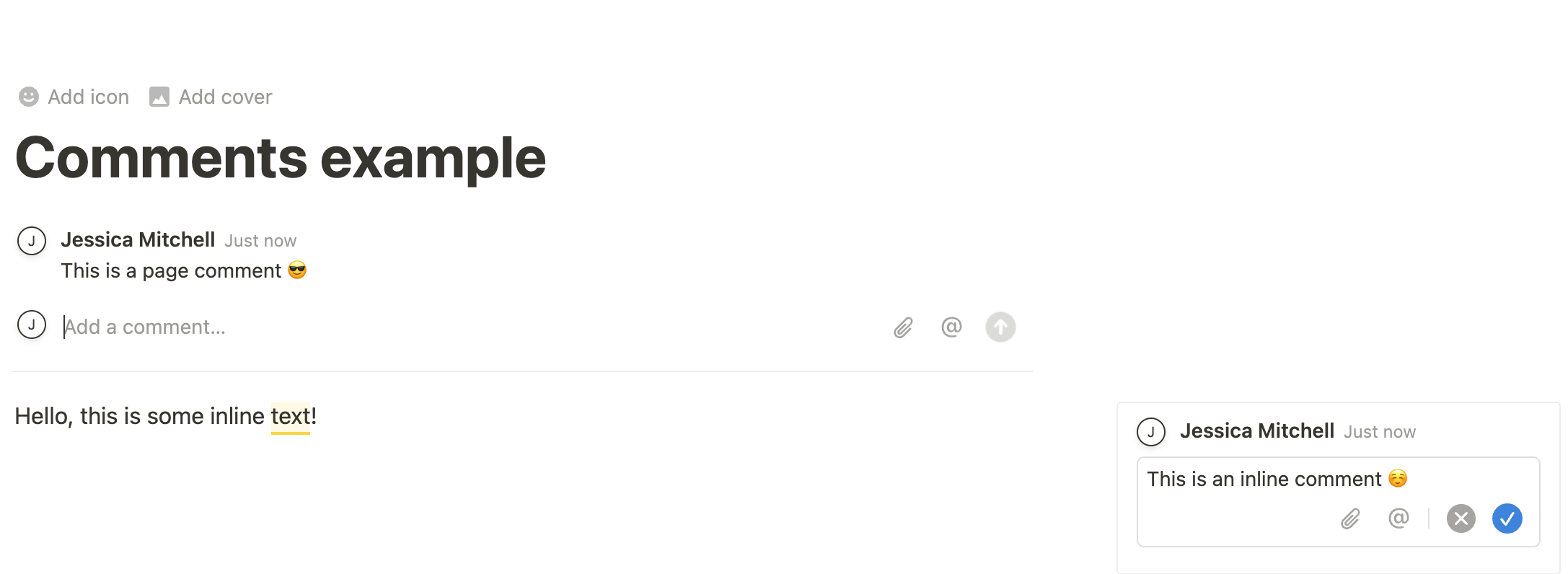
The Notion UI with a page and inline/block comment added.
Permissions
Before discussing how to use the public REST API to interact with comments, let’s first review who can comment on a page. Notion relies on a tiered system for page permissions, which can vary between:Can viewCan commentCan editFull access
Can comment access or higher (i.e. less restricted) to add comments to a page.
Connections must also have comment permissions, which can be set in the Developer portal.
Connections are apps developers build to use the public API within a Notion workspace. Connections must be given explicit permissions to read/write content in a workspace, included content related to comments.
Connection comments capabilities
To give your connection permission to interact with comments via the public REST API, configure the connection to have comment capabilities. There are two relevant capabilities when it comes to comments — the ability to:- Read comments.
- Write (or insert) comments.
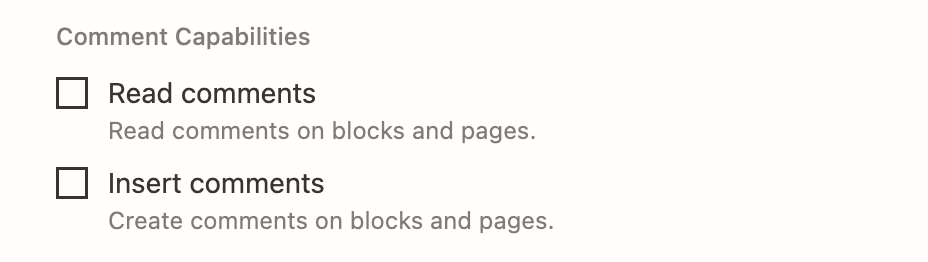
Configuring capabilities on the connection settings page.
Comments in Notion’s UI vs. using the REST API
In the Notion UI, users can:- Add a comment to a page.
- Add an inline comment to child blocks on the page (i.e. comment on page content).
- Respond to an inline comment (i.e. add a comment to an existing discussion thread).
- Read open comments on a page or block.
- Read/re-open resolved comments on a page or block.
- Edit comments.
- Add a comment to a page.
- Update an existing comment.
- Delete a comment.
- Respond to an inline comment (i.e. add a comment to an existing discussion thread).
- Read open comments on a block or page.
- Start a new discussion thread.
- Retrieve resolved comments.
Keep an eye on our Changelog for new features and updates to the REST API.
Retrieving comments for a page or block
The Retrieve comments endpoint can be used to list all open (or “un-resolved”) comments for a page or block. Whether you’re retrieving comments for a page or block, theblock_id query parameter is used. This is because pages are technically blocks.
This endpoint returns a flatlist of comments associated with the ID provided; however, some block types may support multiple discussion threads. This means there may be multiple discussion threads included in the response. When this is the case, comments from all discussion threads will be returned in ascending chronological order. The threads can be distinguished by sorting them discussion_id field on each comment object.
Adding a comment to a page
You can add a top-level comment to a page by using the Create comment endpoint. Requests made to this endpoint require the ID for the parent page, as well as a comment body provided as either rich text or a Markdown string with inline formatting support. Therich_text and markdown parameters are mutually exclusive — exactly one must be provided per request.
id and object fields. This is because the connection can create new comments but can’t retrieve comments, even if the retrieval is just the response for the newly created one. (Reminder: Update the read/write settings in the Developer portal.)
In the Notion UI, this new comment will be displayed on the page using your connection’s name and icon.
Adding an inline comment
To add a block-level inline comment, use the Create comment endpoint withparent.block_id. This creates a comment attached to the whole block, such as a paragraph, heading, or to-do item.
discussion_id for that discussion thread.
Updating a comment
You can update the content of an existing comment using the Update comment endpoint. The request requires thecomment_id of the comment to update and a new body provided as either rich text or a Markdown string.
The rich_text and markdown parameters are mutually exclusive — exactly one must be provided per request.
Deleting a comment
You can delete a comment using the Delete comment endpoint. The request requires thecomment_id of the comment to delete.
A connection can only delete comments that it created. If the discussion thread is left empty after deleting the last comment, the discussion itself is also removed.
Inline comments
Responding to a discussion thread
The Create comment endpoint can also be used to respond to an existing discussion thread on a page or block. (Reminder: Page blocks are the child elements that make up the page content, like a paragraph, header, to-do list, etc.) If using this endpoint to respond to a discussion, provide adiscussion_id parameter instead of a parent object.
Use
parent.block_id to create a comment attached to a whole block. The API does not support creating a new discussion anchored to selected text within a block; it can only reply to an existing selected-text discussion with discussion_id.Retrieving a discussion ID
There are two possible ways to get thediscussion_id for a discussion thread.
- You can use the Retrieve comments endpoint, which will return a list of open comments on the page or block.
- You can also get a
discussion_idmanually by navigating to the page with the discussion you’re responding to. Next, click the “Copy link to discussion” menu option next to the discussion.
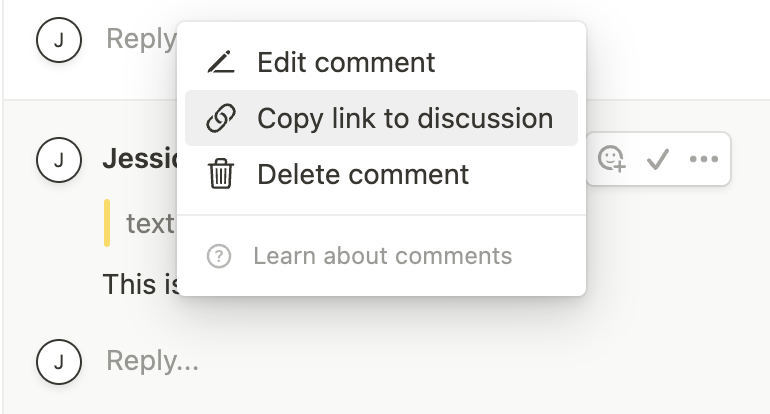
"Copy link to discussion" menu option in Notion UI.
d query parameter is the discussion_id.
Once you have the discussion_id, you can make a request to respond to the thread like so:
Conclusion
In this guide, you learned about comment permissions and how to interact with page and block-level comments using Notion’s public REST API. There are many potential use-cases for this type of interaction, such as:- Commenting on a task when a related pull request is merged.
- Periodically pasting reminders to any pages that meet a certain criteria. For example, you could use the Query a data source endpoint to search for a certain criteria and add a comment to any pages that do.
- For apps that use Notion as a CMS (Content Management System) — like a blog — users can give feedback to pages by adding a comment.
Next steps
- Check out the API reference documentation for the comments API.
- Update your version of the Notion JavaScript SDK to make use of this API:
npm install @notionhq/client@latest. - Clone our notion-sdk-typescript-starter template repository for an easy way to get started using the API with TypeScript.