> ## Documentation Index
> Fetch the complete documentation index at: https://developers.notion.com/llms.txt
> Use this file to discover all available pages before exploring further.
# Overview
> Discover what Notion connections are, when to use each type, and what you can build.
## Using Notion API
Notion connections let you connect your workspace to external tools and automate workflows through code. With the REST API, you can read, create, and update nearly everything in a workspace — pages, databases, users, comments, and more.
When you create a connection, you define what it can do: which API endpoints it can call, what content it can read or write, and how it authenticates. Each connection gets its own credentials and its own set of permissions.
## What is a Notion connection?
A Notion [connection](https://www.notion.so/help/add-and-manage-connections-with-the-api) — sometimes called an integration — connects your workspace to external apps and tools. That could be a SaaS product, an automation script, or a custom tool you've built.
Connections are added to Notion workspaces and require **explicit permission** from users to access Notion pages and databases.
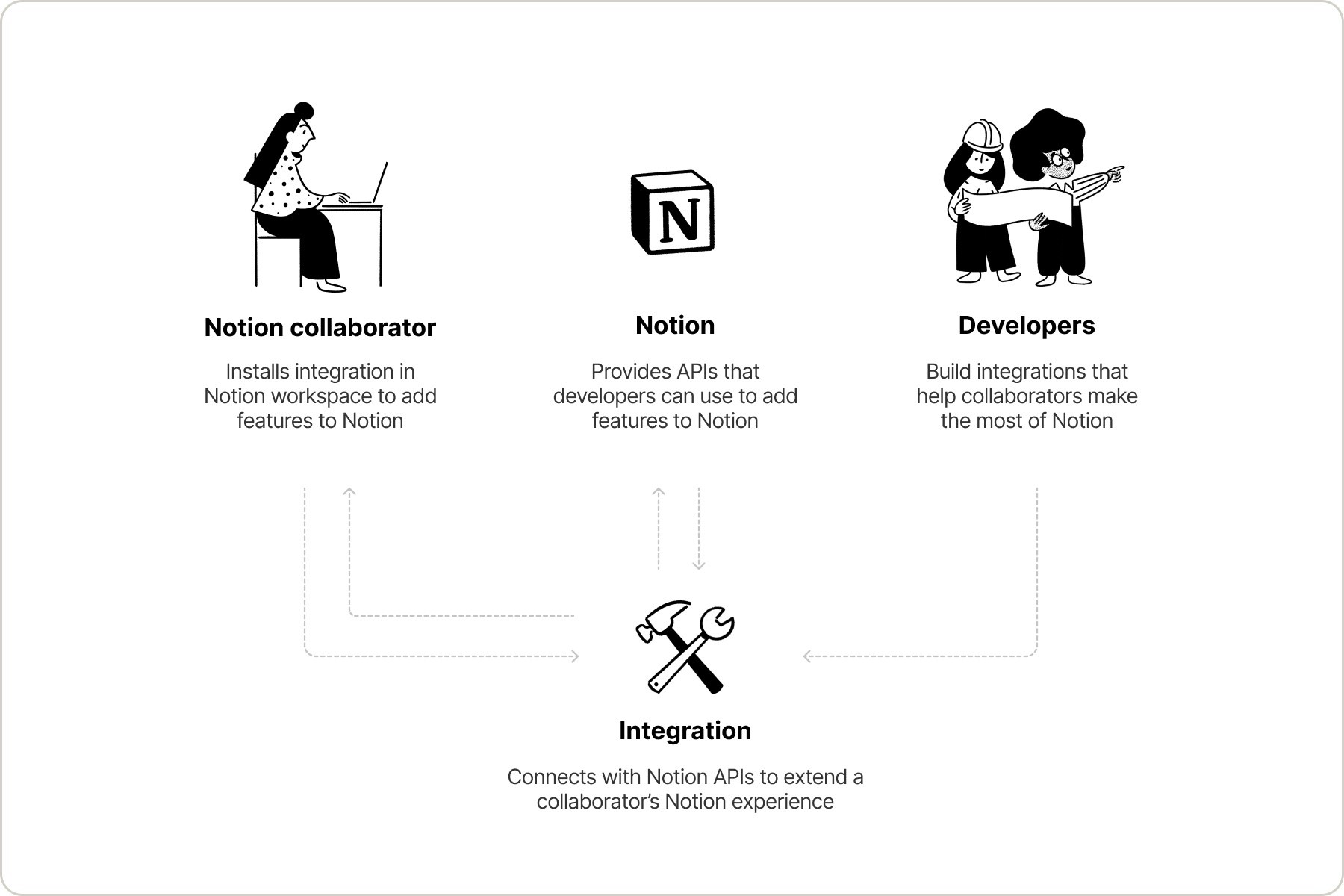 Notion already has a [library](https://www.notion.so/integrations/all) of connections you can browse. For developers who want to build their own, Notion supports internal connections, public connections, and personal access tokens — all powered by the same REST API.
## Connection types
Notion supports three authentication models:
* **Internal connections** are scoped to a single workspace and use a static API token. They're ideal for custom automations and workflows — things like syncing data, sending notifications, or building internal dashboards.
* **Public connections** use OAuth 2.0 for authentication. At creation time, you choose their [installation scope](/guides/get-started/public-connections#installation-scope): **Any workspace** (any Notion user can install; Marketplace-eligible) or **Selected workspaces only** (restricted to workspaces you select; not Marketplace-eligible).
* **Personal access tokens (PATs)** are user-scoped tokens for scripts, CLI workflows, Workers, and tools that should act as one Notion user. A PAT uses the creator's workspace membership and page permissions. See [Personal access tokens](/guides/get-started/personal-access-tokens).
Public connections must undergo a Notion security review before being [listed on the Marketplace](/guides/get-started/marketplace-listing). You can create and use a public connection without listing it.
### Comparison
| Feature | Internal connections | Public connections | Personal access tokens |
| :----------------- | :----------------------------------------------------------------- | :--------------------------------------------------------------------------------------------------------- | :-------------------------------------------------------------------------------- |
| Best for | Team-owned automations in one workspace. | Apps or services used by many Notion users or workspaces. | User-owned scripts, CLI workflows, Workers, and trusted tools. |
| Installation scope | Single workspace. | Any workspace, or a specific set of workspaces chosen at creation time. Scope can't change after creation. | One user in one workspace. |
| User access | Only members of the workspace where it's installed. | Any user in a workspace where the connection is allowed to install. | The member who created the token. |
| Content access | Granted directly to the connection, not tied to any specific user. | Users choose which pages to share during the OAuth flow or via the Add connections menu. | Uses the creator's Notion permissions; pages do not need to be shared with a bot. |
| Authentication | Static API token. | OAuth 2.0. | Static bearer token. |
**Looking for SCIM or SAML SSO?**
Enterprise identity management (user provisioning, group management, and Single Sign-On) is covered in Notion's Help Center, not in these API docs.
## Shared concepts
All connection and token types share a few core concepts.
### Capabilities
Every connection or token has a set of capabilities that control what it can do — read content, update content, insert content, read comments, and more. You configure capabilities when you create a connection or PAT. See the [Capabilities reference](/reference/capabilities) for the full list.
Create, update, and retrieve page content.
Manage database, properties, entries, and schemas.
Create and configure database views programmatically.
Manage data sources, properties, entries, and schemas.
Upload and attach files to pages and databases.
Handle page and inline comments.
Search through workspace content.
Access user profiles and permissions.
### Content access
Connections must have access to pages and databases before they can interact with them. The mechanism differs by type:
* **Internal connections** can be granted access in two ways: the connection owner can add pages directly from the **Content access** tab in the Developer portal, or workspace members can share pages via the **Add connections** menu in Notion.
* **Public connections** use the OAuth page picker, where users select which pages to grant access to during the authorization flow.
* **Personal access tokens** use the token creator's existing Notion permissions. If the creator can access a page in Notion, a PAT with the right capabilities can access it through the API.
See the [Internal connections](/guides/get-started/internal-connections), [Public connections](/guides/get-started/public-connections), and [Personal access tokens](/guides/get-started/personal-access-tokens) guides for specifics on how content access works for each type.
### Webhooks
Connections can subscribe to real-time events — like page updates, property changes, and new comments — via webhooks. This allows your connection to react to changes in Notion without polling the API. See the [Webhooks guide](/reference/webhooks) for details on setting up webhook subscriptions.
## Starting your connection journey
We recommend starting with an internal connection — it's the fastest way to begin building. You get an API token immediately and can focus entirely on using the API within your workspace, without worrying about OAuth or Marketplace listing. You can always create a public connection later if you need multi-workspace support.
Here's a guided path through the documentation:
[**Quickstart**](/guides/get-started/quick-start) — Build your first connection with a hands-on tutorial.
[**Personal access tokens**](/guides/get-started/personal-access-tokens) — Create a user-scoped token for scripts, CLI workflows, Workers, or trusted tools.
[**Internal connections**](/guides/get-started/internal-connections) — Understand how internal connections work, including the permissions model.
[**Public connections**](/guides/get-started/public-connections) — Learn how public connections work, including installation scope and the OAuth flow.
[**Authorization**](/guides/get-started/authorization) — Implement the OAuth 2.0 flow for public connections.
[**Handling API keys**](/guides/get-started/handling-api-keys) — Secure and manage your API tokens in production.
[**Preparing for users**](/guides/get-started/preparing-for-users) — Set up databases, pages, and views automatically when users install your connection.
[**List on the Marketplace**](/guides/get-started/marketplace-listing) — Make your public connection discoverable to all Notion users.
## Resources
Explore the links below to get started, and join the [Notion Devs Slack community](https://join.slack.com/t/notiondevs/shared_invite/zt-3u9oid9q8-HLUBmMVWYK~g9HFo4U4raA) to share your projects and connect with fellow developers.
Notion already has a [library](https://www.notion.so/integrations/all) of connections you can browse. For developers who want to build their own, Notion supports internal connections, public connections, and personal access tokens — all powered by the same REST API.
## Connection types
Notion supports three authentication models:
* **Internal connections** are scoped to a single workspace and use a static API token. They're ideal for custom automations and workflows — things like syncing data, sending notifications, or building internal dashboards.
* **Public connections** use OAuth 2.0 for authentication. At creation time, you choose their [installation scope](/guides/get-started/public-connections#installation-scope): **Any workspace** (any Notion user can install; Marketplace-eligible) or **Selected workspaces only** (restricted to workspaces you select; not Marketplace-eligible).
* **Personal access tokens (PATs)** are user-scoped tokens for scripts, CLI workflows, Workers, and tools that should act as one Notion user. A PAT uses the creator's workspace membership and page permissions. See [Personal access tokens](/guides/get-started/personal-access-tokens).
Public connections must undergo a Notion security review before being [listed on the Marketplace](/guides/get-started/marketplace-listing). You can create and use a public connection without listing it.
### Comparison
| Feature | Internal connections | Public connections | Personal access tokens |
| :----------------- | :----------------------------------------------------------------- | :--------------------------------------------------------------------------------------------------------- | :-------------------------------------------------------------------------------- |
| Best for | Team-owned automations in one workspace. | Apps or services used by many Notion users or workspaces. | User-owned scripts, CLI workflows, Workers, and trusted tools. |
| Installation scope | Single workspace. | Any workspace, or a specific set of workspaces chosen at creation time. Scope can't change after creation. | One user in one workspace. |
| User access | Only members of the workspace where it's installed. | Any user in a workspace where the connection is allowed to install. | The member who created the token. |
| Content access | Granted directly to the connection, not tied to any specific user. | Users choose which pages to share during the OAuth flow or via the Add connections menu. | Uses the creator's Notion permissions; pages do not need to be shared with a bot. |
| Authentication | Static API token. | OAuth 2.0. | Static bearer token. |
**Looking for SCIM or SAML SSO?**
Enterprise identity management (user provisioning, group management, and Single Sign-On) is covered in Notion's Help Center, not in these API docs.
## Shared concepts
All connection and token types share a few core concepts.
### Capabilities
Every connection or token has a set of capabilities that control what it can do — read content, update content, insert content, read comments, and more. You configure capabilities when you create a connection or PAT. See the [Capabilities reference](/reference/capabilities) for the full list.
Create, update, and retrieve page content.
Manage database, properties, entries, and schemas.
Create and configure database views programmatically.
Manage data sources, properties, entries, and schemas.
Upload and attach files to pages and databases.
Handle page and inline comments.
Search through workspace content.
Access user profiles and permissions.
### Content access
Connections must have access to pages and databases before they can interact with them. The mechanism differs by type:
* **Internal connections** can be granted access in two ways: the connection owner can add pages directly from the **Content access** tab in the Developer portal, or workspace members can share pages via the **Add connections** menu in Notion.
* **Public connections** use the OAuth page picker, where users select which pages to grant access to during the authorization flow.
* **Personal access tokens** use the token creator's existing Notion permissions. If the creator can access a page in Notion, a PAT with the right capabilities can access it through the API.
See the [Internal connections](/guides/get-started/internal-connections), [Public connections](/guides/get-started/public-connections), and [Personal access tokens](/guides/get-started/personal-access-tokens) guides for specifics on how content access works for each type.
### Webhooks
Connections can subscribe to real-time events — like page updates, property changes, and new comments — via webhooks. This allows your connection to react to changes in Notion without polling the API. See the [Webhooks guide](/reference/webhooks) for details on setting up webhook subscriptions.
## Starting your connection journey
We recommend starting with an internal connection — it's the fastest way to begin building. You get an API token immediately and can focus entirely on using the API within your workspace, without worrying about OAuth or Marketplace listing. You can always create a public connection later if you need multi-workspace support.
Here's a guided path through the documentation:
[**Quickstart**](/guides/get-started/quick-start) — Build your first connection with a hands-on tutorial.
[**Personal access tokens**](/guides/get-started/personal-access-tokens) — Create a user-scoped token for scripts, CLI workflows, Workers, or trusted tools.
[**Internal connections**](/guides/get-started/internal-connections) — Understand how internal connections work, including the permissions model.
[**Public connections**](/guides/get-started/public-connections) — Learn how public connections work, including installation scope and the OAuth flow.
[**Authorization**](/guides/get-started/authorization) — Implement the OAuth 2.0 flow for public connections.
[**Handling API keys**](/guides/get-started/handling-api-keys) — Secure and manage your API tokens in production.
[**Preparing for users**](/guides/get-started/preparing-for-users) — Set up databases, pages, and views automatically when users install your connection.
[**List on the Marketplace**](/guides/get-started/marketplace-listing) — Make your public connection discoverable to all Notion users.
## Resources
Explore the links below to get started, and join the [Notion Devs Slack community](https://join.slack.com/t/notiondevs/shared_invite/zt-3u9oid9q8-HLUBmMVWYK~g9HFo4U4raA) to share your projects and connect with fellow developers.