> ## Documentation Index
> Fetch the complete documentation index at: https://developers.notion.com/llms.txt
> Use this file to discover all available pages before exploring further.
# Working with page content
> Learn about page content and how to add or retrieve it with the Notion API.
## Overview
[Pages](https://www.notion.so/help/category/write-edit-and-customize) are where users write everything from quick notes, to shared documents, to curated landing pages in Notion. Connections can help users turn Notion into the single source of truth by syndicating content or help users gather, connect, and visualize content inside Notion.
In this guide, you'll learn about how the building blocks of page content are represented in the API and what you can do with them. By the end, you'll be able to create new pages with content, read content from other pages, and add blocks to existing pages.
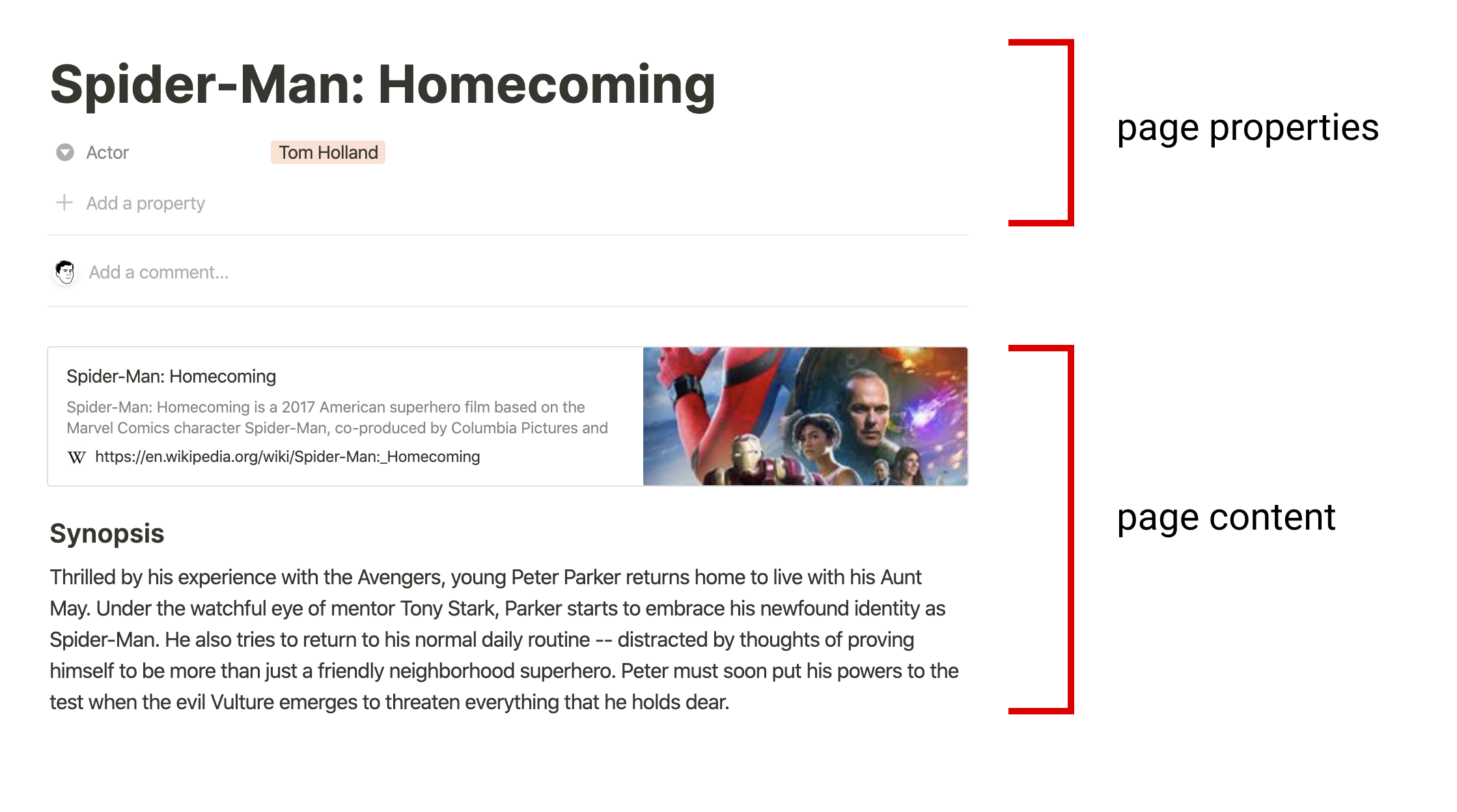
### Page content versus properties
In general, **page properties** are best for capturing structured information such as a due date, a category, or a relationship to another page. **Page content** is best for looser structures or free form content. Page content is where users compose their thoughts or tell a story. Page properties are where users capture data and build systems. Your connection should aim to use each in the way users expect.
 ## Modeling content as blocks
A page's content is represented by a list of [block objects](/reference/block). These blocks are referred to as the page's children. Each block has a type, such as a paragraph, a heading, or an image. Some types of blocks, such as a toggle list, have children of their own.
Let's start with a simple example, a [paragraph block](/reference/block#paragraph):
```js JavaScript theme={null}
{
"object": "block",
"id": "380c78c0-e0f5-4565-bdbd-c4ccb079050d",
"type": "paragraph",
"created_time": "",
"last_edited_time": "",
"has_children": false,
"paragraph": {
"rich_text": [{
"type": "text",
"text": { "content": "Grocery List" }
}]
}
}
```
Paragraph blocks include common properties which every block includes: `object`, `type`, `created_time`, `last_edited_time`, and `has_children`. In addition, it contains type-specific information inside the `paragraph` property. Paragraph blocks have a `rich_text` property. Other block types have different type-specific properties.
Now let's look at an example where the block has child blocks: a paragraph followed by an indented [todo block](/reference/block#to-do):
```js JavaScript expandable theme={null}
{
"object": "block",
"id": "380c78c0-e0f5-4565-bdbd-c4ccb079050d",
"type": "paragraph",
"created_time": "",
"last_edited_time": "",
"has_children": true,
"paragraph": {
"rich_text": [{
"type": "text",
"text": { "content": "Grocery List" }
}],
"children": [
{
"object": "block",
"id": "6d5b2463-a1c1-4e22-9b3b-49b3fe7ad384",
"type": "to_do",
"created_time": "",
"last_edited_time": "",
"has_children": false,
"to_do": {
"rich_text": [{
"type": "text",
"text": { "content": "Buy kale" }
}],
"checked": false
}
}
]
}
}
```
Child blocks are represented as a list of blocks inside the type-specific property. When a block has children, the `has_children` property is `true`. Only some block types, like paragraph blocks, support children.
**Pages are also blocks**
Pages are a special kind of block, but they have children like many other block types. When [retrieving a list of child blocks](/reference/get-block-children), you can use the page ID as a block ID.
When a child page appears inside another page, it's represented as a `child_page` block, which does not have children. You should think of this as a reference to the page block.
**Unsupported block types**
The Notion API currently supports a subset of Notion [block](/reference/block#block-type-objects) types, with support for more coming soon. When an unsupported block type appears in a page, it will have the type `"unsupported"`.
### Rich text
In the previous block examples, the value of the `rich_text` property is a list of [rich text objects](/reference/rich-text). Rich text objects can describe more than a simple string - the object includes style information, links, mentions, and more.
Let's look at a simple example that just contains the words "Grocery List":
```js JavaScript theme={null}
{
"type": "text",
"text": {
"content": "Grocery List",
"link": null
},
"annotations": {
"bold": false,
"italic": false,
"strikethrough": false,
"underline": false,
"code": false,
"color": "default"
},
"plain_text": "Grocery List",
"href": null
}
```
Rich text objects follow a similar pattern for type-specific configuration. The rich text object above has a type of `"text"`, and it has additional configuration related to that type in the `text` property. Other information that does not depend on the type, such as `annotations`, `plain_text`, and `href`, are at the top level of the rich text object.
Rich text is used both in page content and inside [page property values](/reference/page-property-values).
## Creating a page with content
Pages can be created with child blocks using the [create a page](/reference/post-page) endpoint. This endpoint supports creating a page within another page, or creating a page within a database.
Let's try creating a page within another page with some sample content. We will use all three parameters for this endpoint. The parent parameter is a [page parent](/reference/page#page-parent). We can build this object using an existing page ID:
```js JavaScript theme={null}
{
"type": "page_id",
"page_id": "494c87d0-72c4-4cf6-960f-55f8427f7692"
}
```
**Permissions**
Before a connection can create a page within another page, it needs access to the page parent. To share a page with a connection, click the `•••` menu at the top right of a page, scroll to `Add connections`, and use the search bar to find and select the connection from the dropdown list.
**Where can I find my page's ID?**
Here's a quick procedure to find the page ID for a specific page in Notion:
Open the page in Notion.
Use the Share menu to Copy link.
Now paste the link in your text editor so you can take a closer look.
The URL ends in a page ID. It should be a 32 character long string. Format this value by inserting hyphens (-) in the following pattern:
1. 8-4-4-4-12 (each number is the length of characters between the hyphens).
2. Example: `1429989fe8ac4effbc8f57f56486db54` becomes `1429989f-e8ac-4eff-bc8f-57f56486db54`.
3. This value is your page ID.
While this procedure is helpful to try the API, **you shouldn't ask users to do this for your connection**. It's more common for a connection to determine a page ID by calling the [search API](/reference/post-search).
The `properties` parameter is an object which describes the page properties. Let's use a simple example with only the required `title` property:
```js JavaScript theme={null}
{
"Name": {
"type": "title",
"title": [{ "type": "text", "text": { "content": "A note from your pals at Notion" } }]
}
}
```
**Page properties within a database**
Pages within a database parent require properties to conform to the database's schema. Follow the [working with databases guide](/guides/data-apis/working-with-databases) for an in-depth discussion with examples.
The children parameter is a list of [block objects]() which describe the page content. Let's use some sample content:
```js JavaScript theme={null}
[
{
"object": "block",
"type": "paragraph",
"paragraph": {
"rich_text": [{ "type": "text", "text": { "content": "You made this page using the Notion API. Pretty cool, huh? We hope you enjoy building with us." } }]
}
}
]
```
**Size limits**
When creating new blocks, keep in mind that the Notion API has [size limits](/reference/errors#size-limits) for the content.
Using all three of the parameters, we create a page by sending a request to [the endpoint](/reference/post-page).
```bash cURL expandable theme={null}
curl -X POST https://api.notion.com/v1/pages \
-H 'Authorization: Bearer '"$NOTION_API_KEY"'' \
-H "Content-Type: application/json" \
-H "Notion-Version: 2026-03-11" \
--data '{
"parent": { "page_id": "494c87d0-72c4-4cf6-960f-55f8427f7692" },
"properties": {
"title": {
"title": [{ "type": "text", "text": { "content": "A note from your pals at Notion" } }]
}
},
"children": [
{
"object": "block",
"type": "paragraph",
"paragraph": {
"rich_text": [{ "type": "text", "text": { "content": "You made this page using the Notion API. Pretty cool, huh? We hope you enjoy building with us." } }]
}
}
]
}'
```
```javascript JavaScript expandable theme={null}
const { Client } = require('@notionhq/client');
const notion = new Client({ auth: process.env.NOTION_API_KEY });
(async () => {
const response = await notion.pages.create({
parent: {
page_id: '494c87d072c44cf6960f55f8427f7692',
},
properties: {
title: {
type: 'title',
title: [
{
type: 'text',
text: {
content: 'A note from your pals at Notion',
},
},
],
},
},
children: [
{
object: 'block',
type: 'paragraph',
paragraph: {
rich_text: [
{
type: 'text',
text: {
content: 'You made this page using the Notion API. Pretty cool, huh? We hope you enjoy building with us.',
},
},
],
},
},
],
});
console.log(response);
})();
```
Once the page is added, you'll receive a response containing the new [page object](/reference/page). Take a look inside Notion and view your new page.
## Reading blocks from a page
Page content can be read from a page using the [retrieve block children](/reference/get-block-children) endpoint. This endpoint returns a list of children for any block which supports children. While pages are a common starting point for reading block children, you can retrieve the block children of other kinds of blocks, too.
The `block_id` parameter is the ID of any existing block. If you're following from the example above, the response contained a page ID. Let's use that page ID to read the sample content from the page. We'll use `"16d8004e-5f6a-42a6-9811-51c22ddada12"` as the block ID.
Using this `block_id`, we retrieve the block children by sending a request to [the endpoint](/reference/get-block-children).
```curl cURL theme={null}
curl https://api.notion.com/v1/blocks/16d8004e-5f6a-42a6-9811-51c22ddada12/children?page_size=100 \
-H 'Authorization: Bearer '"$NOTION_API_KEY"'' \
-H "Notion-Version: 2026-03-11"
```
```javascript JavaScript theme={null}
const { Client } = require('@notionhq/client');
const notion = new Client({ auth: process.env.NOTION_API_KEY });
(async () => {
const blockId = '16d8004e5f6a42a6981151c22ddada12';
const response = await notion.blocks.children.list({
block_id: blockId,
});
console.log(response);
})();
```
You'll receive a response that contains a list of block objects.
```js JavaScript theme={null}
{
"object": "list",
"results": [
{
"object": "block",
/* details omitted */
}
],
"has_more": false,
"next_cursor": null
}
```
This is a paginated response. Paginated responses are used throughout the Notion API when returning a potentially large list of objects. The maximum number of results in one paginated response is 100. The [pagination reference](/reference/pagination) explains how to use the "start\_cursor" and "page\_size" parameters to get more than 100 results.
In this case, the individual child blocks we requested are in the "results" array.
### Reading nested blocks
What happens when the results contain a block that has its own children? In this case, the response will not contain those children, but the `has_children` property will be `true`. If your connection needs a complete representation of a page's (or any block's) content, it should search the results for blocks with `has_children` set to `true`, and recursively call the [retrieve block children](/reference/get-block-children) endpoint.
Reading large pages may take some time. We recommend using asynchronous operations in your architecture, such as a job queue. You will also need to be mindful of [rate limits](/reference/request-limits#rate-limits) to appropriately slow down making new requests after the limit is met.
## Appending blocks to a page
Connections can add more content to a page by using the [append block children](/reference/patch-block-children) endpoint. Let's try to add another block to the page we created in the example above. This endpoint requires two parameters: `block_id` and `children`.
The `block_id` parameter is the ID of any existing block. If you're following from the example above, let's use the same page ID as the block ID: `"16d8004e-5f6a-42a6-9811-51c22ddada12"`.
The `children` parameter is a list of [block objects](/reference/block) which describe the content we want to append. Let's use some more sample content:
```js JavaScript theme={null}
[
{
"object": "block",
"type": "paragraph",
"paragraph": {
"rich_text": [{ "type": "text", "text": { "content": "– Notion API Team", "link": { "type": "url", "url": "https://twitter.com/NotionAPI" } } }]
}
}
]
```
Using both parameters, we append blocks by sending a request to [the endpoint](/reference/patch-block-children).
```bash cURL theme={null}
curl -X PATCH https://api.notion.com/v1/blocks/16d8004e-5f6a-42a6-9811-51c22ddada12/children \
-H 'Authorization: Bearer '"$NOTION_API_KEY"'' \
-H "Content-Type: application/json" \
-H "Notion-Version: 2026-03-11" \
--data '{
"children": [
{
"object": "block",
"type": "paragraph",
"paragraph": {
"rich_text": [{ "type": "text", "text": { "content": "– Notion API Team", "link": { "type": "url", "url": "https://twitter.com/NotionAPI" } } }]
}
}
]
}'
```
```javascript JavaScript theme={null}
const { Client } = require('@notionhq/client');
const notion = new Client({ auth: process.env.NOTION_API_KEY });
(async () => {
const blockId = '16d8004e5f6a42a6981151c22ddada12';
const response = await notion.blocks.children.append({
block_id: blockId,
children: [
{
object: 'block',
type: 'paragraph',
paragraph: {
rich_text: [
{
type: 'text',
text: {
content: '– Notion API Team',
link: {
type: 'url',
url: 'https://twitter.com/NotionAPI',
},
},
},
],
},
},
],
});
console.log(response);
})();
```
You'll receive a response that contains the updated block. The response does not contain the child blocks, but it will show `has_children` set to `true`.
By default, new block children are appended at the end of the parent block. To place the block after a specific child block and not at the end, use the `position` body parameter. The `position` object supports three placement types: `after_block` (insert after a specific block), `start` (insert at the beginning), and `end` (the default when `position` is omitted). For example, if the parent `block_id` is for a block that contains a bulleted list, you can use `position` with `after_block` to insert the new block children after a specific list item.
```bash cURL theme={null}
curl -X PATCH https://api.notion.com/v1/blocks/16d8004e-5f6a-42a6-9811-51c22ddada12/children \
-H 'Authorization: Bearer '"$NOTION_API_KEY"'' \
-H "Content-Type: application/json" \
-H "Notion-Version: 2026-03-11" \
--data '{
"children": [
{
"object": "block",
"type": "paragraph",
"paragraph": {
"rich_text": [{ "type": "text", "text": { "content": "– Notion API Team", "link": { "type": "url", "url": "https://twitter.com/NotionAPI" } } }]
}
}
],
"position": {
"type": "after_block",
"after_block": { "id": "" }
}
}'
```
## Working with AI meeting notes
[AI meeting notes](https://www.notion.com/help/ai-meeting-notes) in Notion automatically generate a summary, action-item notes, and a full transcript for recorded meetings. The API exposes this content through the [`meeting_notes` block type](/reference/block#meeting-notes).
A meeting notes block is a metadata container that lives on the page as a child block. It includes the meeting title, lifecycle status, calendar event details, recording timestamps, and — most importantly — pointers to three child blocks that hold the actual generated content:
* **Summary** (`summary_block_id`) — an AI-generated overview of the meeting.
* **Notes** (`notes_block_id`) — structured action items and key points.
* **Transcript** (`transcript_block_id`) — the full word-for-word transcript.
### Retrieving AI meeting notes content
Meeting notes blocks are read-only. To access the generated content, fetch the page's children to find the meeting notes block, then follow the child block IDs to retrieve each section's content.
**Step 1 — List the page's children** to find the meeting notes block:
```bash cURL theme={null}
curl 'https://api.notion.com/v1/blocks/PAGE_ID/children' \
-H 'Authorization: Bearer '"$NOTION_API_KEY"'' \
-H "Notion-Version: 2026-03-11"
```
```javascript JavaScript theme={null}
const { Client, isFullBlock } = require("@notionhq/client");
const notion = new Client({ auth: process.env.NOTION_API_KEY });
const { results } = await notion.blocks.children.list({
block_id: "PAGE_ID",
});
const meetingNotesBlock = results.find(
(block) => isFullBlock(block) && block.type === "meeting_notes"
);
```
**Step 2 — Read the child block IDs** from the meeting notes block's `children` field:
```json Example meeting_notes block response theme={null}
{
"object": "block",
"type": "meeting_notes",
"meeting_notes": {
"title": [{ "plain_text": "Team Sync" }],
"status": "notes_ready",
"children": {
"summary_block_id": "a1b2c3d4-...",
"notes_block_id": "b2c3d4e5-...",
"transcript_block_id": "c3d4e5f6-..."
},
"calendar_event": {
"start_time": "2026-02-24T10:00:00.000Z",
"end_time": "2026-02-24T10:45:00.000Z"
},
"recording": {
"start_time": "2026-02-24T10:00:00.000Z",
"end_time": "2026-02-24T10:45:00.000Z"
}
}
}
```
**Step 3 — Fetch each section's content** using the child block IDs. Each child is a standard block whose own children are the content (paragraphs, lists, etc.):
```bash cURL theme={null}
# Fetch the summary content
curl 'https://api.notion.com/v1/blocks/SUMMARY_BLOCK_ID/children' \
-H 'Authorization: Bearer '"$NOTION_API_KEY"'' \
-H "Notion-Version: 2026-03-11"
```
```javascript JavaScript theme={null}
const { children } = meetingNotesBlock.meeting_notes;
// Fetch the summary content blocks
const summary = await notion.blocks.children.list({
block_id: children.summary_block_id,
});
// Fetch the notes content blocks
const notes = await notion.blocks.children.list({
block_id: children.notes_block_id,
});
// Fetch the transcript content blocks
const transcript = await notion.blocks.children.list({
block_id: children.transcript_block_id,
});
```
The `status` field indicates whether the meeting notes are fully processed. Wait for `"notes_ready"` before fetching content — earlier statuses mean the AI is still generating output and the child blocks may not yet be available.
You can also retrieve meeting note content as markdown using the [Retrieve page markdown](/reference/retrieve-page-markdown) endpoint with the `include_transcript` query parameter. See [Working with markdown content](/guides/data-apis/working-with-markdown-content) for details.
## Conclusion
Nearly everything users see inside Notion is represented as blocks. Now that you've understood how your connection can build pages with blocks, read blocks, and add blocks to pages - you've unlocked most of the surface area in Notion. You connection can engage users where they do everything from creative writing, to building documentation, and more.
### Next steps
* This guide explains working with page content. Take a look at [working with database properties](/guides/data-apis/working-with-databases#database-properties).
* Explore the [block object](/reference/block) to see other types of blocks you can create.
* Learn more about the various kinds of [rich text objects](/reference/rich-text).
* Learn more about [pagination](/reference/intro#pagination).
## Modeling content as blocks
A page's content is represented by a list of [block objects](/reference/block). These blocks are referred to as the page's children. Each block has a type, such as a paragraph, a heading, or an image. Some types of blocks, such as a toggle list, have children of their own.
Let's start with a simple example, a [paragraph block](/reference/block#paragraph):
```js JavaScript theme={null}
{
"object": "block",
"id": "380c78c0-e0f5-4565-bdbd-c4ccb079050d",
"type": "paragraph",
"created_time": "",
"last_edited_time": "",
"has_children": false,
"paragraph": {
"rich_text": [{
"type": "text",
"text": { "content": "Grocery List" }
}]
}
}
```
Paragraph blocks include common properties which every block includes: `object`, `type`, `created_time`, `last_edited_time`, and `has_children`. In addition, it contains type-specific information inside the `paragraph` property. Paragraph blocks have a `rich_text` property. Other block types have different type-specific properties.
Now let's look at an example where the block has child blocks: a paragraph followed by an indented [todo block](/reference/block#to-do):
```js JavaScript expandable theme={null}
{
"object": "block",
"id": "380c78c0-e0f5-4565-bdbd-c4ccb079050d",
"type": "paragraph",
"created_time": "",
"last_edited_time": "",
"has_children": true,
"paragraph": {
"rich_text": [{
"type": "text",
"text": { "content": "Grocery List" }
}],
"children": [
{
"object": "block",
"id": "6d5b2463-a1c1-4e22-9b3b-49b3fe7ad384",
"type": "to_do",
"created_time": "",
"last_edited_time": "",
"has_children": false,
"to_do": {
"rich_text": [{
"type": "text",
"text": { "content": "Buy kale" }
}],
"checked": false
}
}
]
}
}
```
Child blocks are represented as a list of blocks inside the type-specific property. When a block has children, the `has_children` property is `true`. Only some block types, like paragraph blocks, support children.
**Pages are also blocks**
Pages are a special kind of block, but they have children like many other block types. When [retrieving a list of child blocks](/reference/get-block-children), you can use the page ID as a block ID.
When a child page appears inside another page, it's represented as a `child_page` block, which does not have children. You should think of this as a reference to the page block.
**Unsupported block types**
The Notion API currently supports a subset of Notion [block](/reference/block#block-type-objects) types, with support for more coming soon. When an unsupported block type appears in a page, it will have the type `"unsupported"`.
### Rich text
In the previous block examples, the value of the `rich_text` property is a list of [rich text objects](/reference/rich-text). Rich text objects can describe more than a simple string - the object includes style information, links, mentions, and more.
Let's look at a simple example that just contains the words "Grocery List":
```js JavaScript theme={null}
{
"type": "text",
"text": {
"content": "Grocery List",
"link": null
},
"annotations": {
"bold": false,
"italic": false,
"strikethrough": false,
"underline": false,
"code": false,
"color": "default"
},
"plain_text": "Grocery List",
"href": null
}
```
Rich text objects follow a similar pattern for type-specific configuration. The rich text object above has a type of `"text"`, and it has additional configuration related to that type in the `text` property. Other information that does not depend on the type, such as `annotations`, `plain_text`, and `href`, are at the top level of the rich text object.
Rich text is used both in page content and inside [page property values](/reference/page-property-values).
## Creating a page with content
Pages can be created with child blocks using the [create a page](/reference/post-page) endpoint. This endpoint supports creating a page within another page, or creating a page within a database.
Let's try creating a page within another page with some sample content. We will use all three parameters for this endpoint. The parent parameter is a [page parent](/reference/page#page-parent). We can build this object using an existing page ID:
```js JavaScript theme={null}
{
"type": "page_id",
"page_id": "494c87d0-72c4-4cf6-960f-55f8427f7692"
}
```
**Permissions**
Before a connection can create a page within another page, it needs access to the page parent. To share a page with a connection, click the `•••` menu at the top right of a page, scroll to `Add connections`, and use the search bar to find and select the connection from the dropdown list.
**Where can I find my page's ID?**
Here's a quick procedure to find the page ID for a specific page in Notion:
Open the page in Notion.
Use the Share menu to Copy link.
Now paste the link in your text editor so you can take a closer look.
The URL ends in a page ID. It should be a 32 character long string. Format this value by inserting hyphens (-) in the following pattern:
1. 8-4-4-4-12 (each number is the length of characters between the hyphens).
2. Example: `1429989fe8ac4effbc8f57f56486db54` becomes `1429989f-e8ac-4eff-bc8f-57f56486db54`.
3. This value is your page ID.
While this procedure is helpful to try the API, **you shouldn't ask users to do this for your connection**. It's more common for a connection to determine a page ID by calling the [search API](/reference/post-search).
The `properties` parameter is an object which describes the page properties. Let's use a simple example with only the required `title` property:
```js JavaScript theme={null}
{
"Name": {
"type": "title",
"title": [{ "type": "text", "text": { "content": "A note from your pals at Notion" } }]
}
}
```
**Page properties within a database**
Pages within a database parent require properties to conform to the database's schema. Follow the [working with databases guide](/guides/data-apis/working-with-databases) for an in-depth discussion with examples.
The children parameter is a list of [block objects]() which describe the page content. Let's use some sample content:
```js JavaScript theme={null}
[
{
"object": "block",
"type": "paragraph",
"paragraph": {
"rich_text": [{ "type": "text", "text": { "content": "You made this page using the Notion API. Pretty cool, huh? We hope you enjoy building with us." } }]
}
}
]
```
**Size limits**
When creating new blocks, keep in mind that the Notion API has [size limits](/reference/errors#size-limits) for the content.
Using all three of the parameters, we create a page by sending a request to [the endpoint](/reference/post-page).
```bash cURL expandable theme={null}
curl -X POST https://api.notion.com/v1/pages \
-H 'Authorization: Bearer '"$NOTION_API_KEY"'' \
-H "Content-Type: application/json" \
-H "Notion-Version: 2026-03-11" \
--data '{
"parent": { "page_id": "494c87d0-72c4-4cf6-960f-55f8427f7692" },
"properties": {
"title": {
"title": [{ "type": "text", "text": { "content": "A note from your pals at Notion" } }]
}
},
"children": [
{
"object": "block",
"type": "paragraph",
"paragraph": {
"rich_text": [{ "type": "text", "text": { "content": "You made this page using the Notion API. Pretty cool, huh? We hope you enjoy building with us." } }]
}
}
]
}'
```
```javascript JavaScript expandable theme={null}
const { Client } = require('@notionhq/client');
const notion = new Client({ auth: process.env.NOTION_API_KEY });
(async () => {
const response = await notion.pages.create({
parent: {
page_id: '494c87d072c44cf6960f55f8427f7692',
},
properties: {
title: {
type: 'title',
title: [
{
type: 'text',
text: {
content: 'A note from your pals at Notion',
},
},
],
},
},
children: [
{
object: 'block',
type: 'paragraph',
paragraph: {
rich_text: [
{
type: 'text',
text: {
content: 'You made this page using the Notion API. Pretty cool, huh? We hope you enjoy building with us.',
},
},
],
},
},
],
});
console.log(response);
})();
```
Once the page is added, you'll receive a response containing the new [page object](/reference/page). Take a look inside Notion and view your new page.
## Reading blocks from a page
Page content can be read from a page using the [retrieve block children](/reference/get-block-children) endpoint. This endpoint returns a list of children for any block which supports children. While pages are a common starting point for reading block children, you can retrieve the block children of other kinds of blocks, too.
The `block_id` parameter is the ID of any existing block. If you're following from the example above, the response contained a page ID. Let's use that page ID to read the sample content from the page. We'll use `"16d8004e-5f6a-42a6-9811-51c22ddada12"` as the block ID.
Using this `block_id`, we retrieve the block children by sending a request to [the endpoint](/reference/get-block-children).
```curl cURL theme={null}
curl https://api.notion.com/v1/blocks/16d8004e-5f6a-42a6-9811-51c22ddada12/children?page_size=100 \
-H 'Authorization: Bearer '"$NOTION_API_KEY"'' \
-H "Notion-Version: 2026-03-11"
```
```javascript JavaScript theme={null}
const { Client } = require('@notionhq/client');
const notion = new Client({ auth: process.env.NOTION_API_KEY });
(async () => {
const blockId = '16d8004e5f6a42a6981151c22ddada12';
const response = await notion.blocks.children.list({
block_id: blockId,
});
console.log(response);
})();
```
You'll receive a response that contains a list of block objects.
```js JavaScript theme={null}
{
"object": "list",
"results": [
{
"object": "block",
/* details omitted */
}
],
"has_more": false,
"next_cursor": null
}
```
This is a paginated response. Paginated responses are used throughout the Notion API when returning a potentially large list of objects. The maximum number of results in one paginated response is 100. The [pagination reference](/reference/pagination) explains how to use the "start\_cursor" and "page\_size" parameters to get more than 100 results.
In this case, the individual child blocks we requested are in the "results" array.
### Reading nested blocks
What happens when the results contain a block that has its own children? In this case, the response will not contain those children, but the `has_children` property will be `true`. If your connection needs a complete representation of a page's (or any block's) content, it should search the results for blocks with `has_children` set to `true`, and recursively call the [retrieve block children](/reference/get-block-children) endpoint.
Reading large pages may take some time. We recommend using asynchronous operations in your architecture, such as a job queue. You will also need to be mindful of [rate limits](/reference/request-limits#rate-limits) to appropriately slow down making new requests after the limit is met.
## Appending blocks to a page
Connections can add more content to a page by using the [append block children](/reference/patch-block-children) endpoint. Let's try to add another block to the page we created in the example above. This endpoint requires two parameters: `block_id` and `children`.
The `block_id` parameter is the ID of any existing block. If you're following from the example above, let's use the same page ID as the block ID: `"16d8004e-5f6a-42a6-9811-51c22ddada12"`.
The `children` parameter is a list of [block objects](/reference/block) which describe the content we want to append. Let's use some more sample content:
```js JavaScript theme={null}
[
{
"object": "block",
"type": "paragraph",
"paragraph": {
"rich_text": [{ "type": "text", "text": { "content": "– Notion API Team", "link": { "type": "url", "url": "https://twitter.com/NotionAPI" } } }]
}
}
]
```
Using both parameters, we append blocks by sending a request to [the endpoint](/reference/patch-block-children).
```bash cURL theme={null}
curl -X PATCH https://api.notion.com/v1/blocks/16d8004e-5f6a-42a6-9811-51c22ddada12/children \
-H 'Authorization: Bearer '"$NOTION_API_KEY"'' \
-H "Content-Type: application/json" \
-H "Notion-Version: 2026-03-11" \
--data '{
"children": [
{
"object": "block",
"type": "paragraph",
"paragraph": {
"rich_text": [{ "type": "text", "text": { "content": "– Notion API Team", "link": { "type": "url", "url": "https://twitter.com/NotionAPI" } } }]
}
}
]
}'
```
```javascript JavaScript theme={null}
const { Client } = require('@notionhq/client');
const notion = new Client({ auth: process.env.NOTION_API_KEY });
(async () => {
const blockId = '16d8004e5f6a42a6981151c22ddada12';
const response = await notion.blocks.children.append({
block_id: blockId,
children: [
{
object: 'block',
type: 'paragraph',
paragraph: {
rich_text: [
{
type: 'text',
text: {
content: '– Notion API Team',
link: {
type: 'url',
url: 'https://twitter.com/NotionAPI',
},
},
},
],
},
},
],
});
console.log(response);
})();
```
You'll receive a response that contains the updated block. The response does not contain the child blocks, but it will show `has_children` set to `true`.
By default, new block children are appended at the end of the parent block. To place the block after a specific child block and not at the end, use the `position` body parameter. The `position` object supports three placement types: `after_block` (insert after a specific block), `start` (insert at the beginning), and `end` (the default when `position` is omitted). For example, if the parent `block_id` is for a block that contains a bulleted list, you can use `position` with `after_block` to insert the new block children after a specific list item.
```bash cURL theme={null}
curl -X PATCH https://api.notion.com/v1/blocks/16d8004e-5f6a-42a6-9811-51c22ddada12/children \
-H 'Authorization: Bearer '"$NOTION_API_KEY"'' \
-H "Content-Type: application/json" \
-H "Notion-Version: 2026-03-11" \
--data '{
"children": [
{
"object": "block",
"type": "paragraph",
"paragraph": {
"rich_text": [{ "type": "text", "text": { "content": "– Notion API Team", "link": { "type": "url", "url": "https://twitter.com/NotionAPI" } } }]
}
}
],
"position": {
"type": "after_block",
"after_block": { "id": "" }
}
}'
```
## Working with AI meeting notes
[AI meeting notes](https://www.notion.com/help/ai-meeting-notes) in Notion automatically generate a summary, action-item notes, and a full transcript for recorded meetings. The API exposes this content through the [`meeting_notes` block type](/reference/block#meeting-notes).
A meeting notes block is a metadata container that lives on the page as a child block. It includes the meeting title, lifecycle status, calendar event details, recording timestamps, and — most importantly — pointers to three child blocks that hold the actual generated content:
* **Summary** (`summary_block_id`) — an AI-generated overview of the meeting.
* **Notes** (`notes_block_id`) — structured action items and key points.
* **Transcript** (`transcript_block_id`) — the full word-for-word transcript.
### Retrieving AI meeting notes content
Meeting notes blocks are read-only. To access the generated content, fetch the page's children to find the meeting notes block, then follow the child block IDs to retrieve each section's content.
**Step 1 — List the page's children** to find the meeting notes block:
```bash cURL theme={null}
curl 'https://api.notion.com/v1/blocks/PAGE_ID/children' \
-H 'Authorization: Bearer '"$NOTION_API_KEY"'' \
-H "Notion-Version: 2026-03-11"
```
```javascript JavaScript theme={null}
const { Client, isFullBlock } = require("@notionhq/client");
const notion = new Client({ auth: process.env.NOTION_API_KEY });
const { results } = await notion.blocks.children.list({
block_id: "PAGE_ID",
});
const meetingNotesBlock = results.find(
(block) => isFullBlock(block) && block.type === "meeting_notes"
);
```
**Step 2 — Read the child block IDs** from the meeting notes block's `children` field:
```json Example meeting_notes block response theme={null}
{
"object": "block",
"type": "meeting_notes",
"meeting_notes": {
"title": [{ "plain_text": "Team Sync" }],
"status": "notes_ready",
"children": {
"summary_block_id": "a1b2c3d4-...",
"notes_block_id": "b2c3d4e5-...",
"transcript_block_id": "c3d4e5f6-..."
},
"calendar_event": {
"start_time": "2026-02-24T10:00:00.000Z",
"end_time": "2026-02-24T10:45:00.000Z"
},
"recording": {
"start_time": "2026-02-24T10:00:00.000Z",
"end_time": "2026-02-24T10:45:00.000Z"
}
}
}
```
**Step 3 — Fetch each section's content** using the child block IDs. Each child is a standard block whose own children are the content (paragraphs, lists, etc.):
```bash cURL theme={null}
# Fetch the summary content
curl 'https://api.notion.com/v1/blocks/SUMMARY_BLOCK_ID/children' \
-H 'Authorization: Bearer '"$NOTION_API_KEY"'' \
-H "Notion-Version: 2026-03-11"
```
```javascript JavaScript theme={null}
const { children } = meetingNotesBlock.meeting_notes;
// Fetch the summary content blocks
const summary = await notion.blocks.children.list({
block_id: children.summary_block_id,
});
// Fetch the notes content blocks
const notes = await notion.blocks.children.list({
block_id: children.notes_block_id,
});
// Fetch the transcript content blocks
const transcript = await notion.blocks.children.list({
block_id: children.transcript_block_id,
});
```
The `status` field indicates whether the meeting notes are fully processed. Wait for `"notes_ready"` before fetching content — earlier statuses mean the AI is still generating output and the child blocks may not yet be available.
You can also retrieve meeting note content as markdown using the [Retrieve page markdown](/reference/retrieve-page-markdown) endpoint with the `include_transcript` query parameter. See [Working with markdown content](/guides/data-apis/working-with-markdown-content) for details.
## Conclusion
Nearly everything users see inside Notion is represented as blocks. Now that you've understood how your connection can build pages with blocks, read blocks, and add blocks to pages - you've unlocked most of the surface area in Notion. You connection can engage users where they do everything from creative writing, to building documentation, and more.
### Next steps
* This guide explains working with page content. Take a look at [working with database properties](/guides/data-apis/working-with-databases#database-properties).
* Explore the [block object](/reference/block) to see other types of blocks you can create.
* Learn more about the various kinds of [rich text objects](/reference/rich-text).
* Learn more about [pagination](/reference/intro#pagination).