> ## Documentation Index
> Fetch the complete documentation index at: https://developers.notion.com/llms.txt
> Use this file to discover all available pages before exploring further.
# Working with databases
> Learn about database schemas, querying databases, and more.
## Overview
[Databases](https://www.notion.so/help/intro-to-databases) are collections of [pages](/reference/page) in a Notion workspace that can be filtered, sorted, and organized as needed. They allow users to create and manipulate structured data in Notion.
Connections can be used to help users sync databases with external systems or build workflows around Notion databases.
In this guide, you'll learn:
### Additional types of databases
In addition to regular Notion databases, there are two other types of databases to be aware of. *Neither of these database types are currently supported by the Public API.*
#### Linked databases
Notion offers [linked databases](https://www.notion.so/help/guides/using-linked-databases) as a way of showing databases in multiple places. You can identify them by a ↗ next to the database title which, when clicked, takes you to the source database.
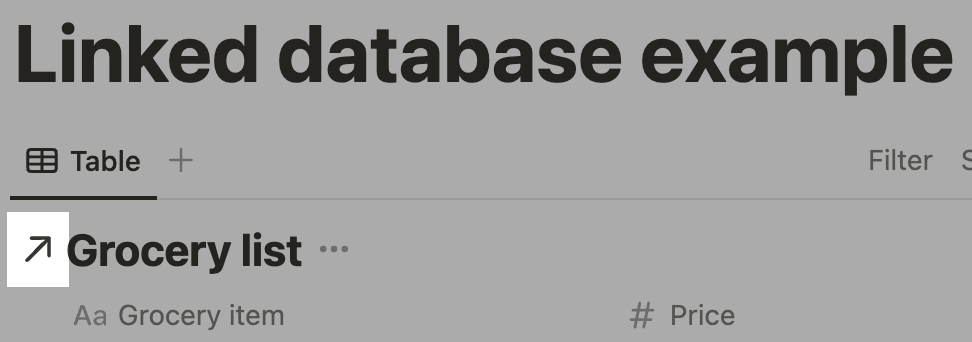 Notion's API does not currently support linked data sources. When sharing a database with your connection, make sure it contains the original data source!
#### Wiki databases
Wiki databases are a special category of databases that allow [Workspace Owners](https://www.notion.so/help/add-members-admins-guests-and-groups) to organize child pages and databases with a homepage view. Wiki database pages can be verified by the Workspace Owner with an optional expiration date for the verification.
Pages in a wiki database will have a [`verification`](/reference/page-property-values#verification) property that can be set through your Notion workspace. See directions for [creating wikis](https://www.notion.so/help/wikis-and-verified-pages#create-a-wiki) and [verifying pages](https://www.notion.so/help/wikis-and-verified-pages#verifying-pages) in our Help Center.
Wiki databases can currently only be created through your Notion workspace directly (i.e., not Notion's API). Ability to retrieve wiki databases in the API may be limited, and you can't add multiple data sources to a wiki database.
To learn more about creating and working with wiki databases, see the following Help Center articles:
## Structure
Database objects, and their data source children, describe a part of what a user sees in Notion when they open a database. See our [documentation on database objects](/reference/database), [data source objects](/reference/data-source), and [data source properties](/reference/property-object) for a complete description.
Databases contain a list of data sources (IDs and names). In turn, each data source can be retrieved and managed separately and acts as the parent for pages (rows of data) that live under them.
```json Database object example expandable theme={null}
{
"object": "database",
"id": "248104cd-477e-80fd-b757-e945d38000bd",
"title": [
{
"type": "text",
"text": {
"content": "Grocery DB",
// ...
},
// ...
}
],
"parent": {
"type": "page_id",
"page_id": "255104cd-477e-808c-b279-d39ab803a7d2"
},
"is_inline": false,
"in_trash": false,
"created_time": "2025-08-07T10:11:07.504-07:00",
"last_edited_time": "2025-08-10T15:53:11.386-07:00",
"data_sources": [
{
"id": "248104cd-477e-80af-bc30-000bd28de8f9",
"name": "Grocery list"
}
],
"url": "https://www.notion.so/example/248104cd477e80fdb757e945d38000bd",
"icon": null,
"cover": {
"type": "external",
"external": {
"url": "https://website.domain/images/image.png"
}
},
}
```
```json Data source object example expandable theme={null}
{
"object": "data_source",
"id": "248104cd-477e-80af-bc30-000bd28de8f9",
"created_time": "2021-07-08T23:50:00.000Z",
"last_edited_time": "2021-07-08T23:50:00.000Z",
"properties": {
"Grocery item": {
"id": "fy%3A%7B", // URL-decoded: fy:{
"type": "title",
"title": {}
},
"Price": {
"id": "dia%5B", // URL-decoded: dia[
"type": "number",
"number": {
"format": "dollar"
}
},
"Last ordered": {
"id": "%5D%5C%5CR%5B", // URL-decoded: ]\\R[
"type": "date",
"date": {}
},
},
"parent": {
"type": "database_id",
"database_id": "248104cd-477e-80fd-b757-e945d38000bd"
},
"database_parent": {
"type": "page_id",
"page_id": "255104cd-477e-808c-b279-d39ab803a7d2"
},
"in_trash": false,
"icon": {
"type": "emoji",
"emoji": "🎉"
},
"title": [
{
"type": "text",
"text": {
"content": "Grocery list",
"link": null
},
// ...
}
]
}
```
The most important part is the data source's schema, defined in the `properties` object.
**Terminology**
The **columns** of a Notion data source are referred to as its “**properties**” or “**schema**”.
The **rows** of a data source are individual [Page](/reference/page)s that live under it and each contain page properties (keys and values that conform to the data source's schema) and content (what you see in the body of the page in the Notion app).
**Schema limitations**
Notion recommends a max property count of **500** or a max schema size of **50KB**. Updates to database schemas that are too large will be blocked to help maintain database performance.
### Database properties
Notion's API does not currently support linked data sources. When sharing a database with your connection, make sure it contains the original data source!
#### Wiki databases
Wiki databases are a special category of databases that allow [Workspace Owners](https://www.notion.so/help/add-members-admins-guests-and-groups) to organize child pages and databases with a homepage view. Wiki database pages can be verified by the Workspace Owner with an optional expiration date for the verification.
Pages in a wiki database will have a [`verification`](/reference/page-property-values#verification) property that can be set through your Notion workspace. See directions for [creating wikis](https://www.notion.so/help/wikis-and-verified-pages#create-a-wiki) and [verifying pages](https://www.notion.so/help/wikis-and-verified-pages#verifying-pages) in our Help Center.
Wiki databases can currently only be created through your Notion workspace directly (i.e., not Notion's API). Ability to retrieve wiki databases in the API may be limited, and you can't add multiple data sources to a wiki database.
To learn more about creating and working with wiki databases, see the following Help Center articles:
## Structure
Database objects, and their data source children, describe a part of what a user sees in Notion when they open a database. See our [documentation on database objects](/reference/database), [data source objects](/reference/data-source), and [data source properties](/reference/property-object) for a complete description.
Databases contain a list of data sources (IDs and names). In turn, each data source can be retrieved and managed separately and acts as the parent for pages (rows of data) that live under them.
```json Database object example expandable theme={null}
{
"object": "database",
"id": "248104cd-477e-80fd-b757-e945d38000bd",
"title": [
{
"type": "text",
"text": {
"content": "Grocery DB",
// ...
},
// ...
}
],
"parent": {
"type": "page_id",
"page_id": "255104cd-477e-808c-b279-d39ab803a7d2"
},
"is_inline": false,
"in_trash": false,
"created_time": "2025-08-07T10:11:07.504-07:00",
"last_edited_time": "2025-08-10T15:53:11.386-07:00",
"data_sources": [
{
"id": "248104cd-477e-80af-bc30-000bd28de8f9",
"name": "Grocery list"
}
],
"url": "https://www.notion.so/example/248104cd477e80fdb757e945d38000bd",
"icon": null,
"cover": {
"type": "external",
"external": {
"url": "https://website.domain/images/image.png"
}
},
}
```
```json Data source object example expandable theme={null}
{
"object": "data_source",
"id": "248104cd-477e-80af-bc30-000bd28de8f9",
"created_time": "2021-07-08T23:50:00.000Z",
"last_edited_time": "2021-07-08T23:50:00.000Z",
"properties": {
"Grocery item": {
"id": "fy%3A%7B", // URL-decoded: fy:{
"type": "title",
"title": {}
},
"Price": {
"id": "dia%5B", // URL-decoded: dia[
"type": "number",
"number": {
"format": "dollar"
}
},
"Last ordered": {
"id": "%5D%5C%5CR%5B", // URL-decoded: ]\\R[
"type": "date",
"date": {}
},
},
"parent": {
"type": "database_id",
"database_id": "248104cd-477e-80fd-b757-e945d38000bd"
},
"database_parent": {
"type": "page_id",
"page_id": "255104cd-477e-808c-b279-d39ab803a7d2"
},
"in_trash": false,
"icon": {
"type": "emoji",
"emoji": "🎉"
},
"title": [
{
"type": "text",
"text": {
"content": "Grocery list",
"link": null
},
// ...
}
]
}
```
The most important part is the data source's schema, defined in the `properties` object.
**Terminology**
The **columns** of a Notion data source are referred to as its “**properties**” or “**schema**”.
The **rows** of a data source are individual [Page](/reference/page)s that live under it and each contain page properties (keys and values that conform to the data source's schema) and content (what you see in the body of the page in the Notion app).
**Schema limitations**
Notion recommends a max property count of **500** or a max schema size of **50KB**. Updates to database schemas that are too large will be blocked to help maintain database performance.
### Database properties
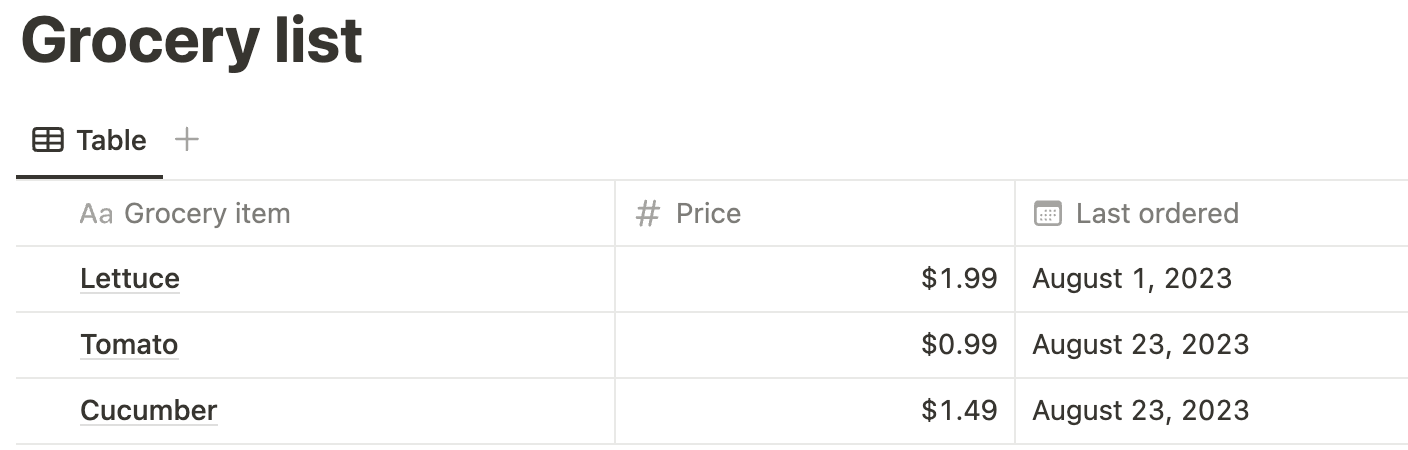 Let's assume you're viewing a database as a table. The columns of the database are represented in the API by database [property objects](/reference/property-object). Property objects store a description of a column, including a type for all the values in a column.
You might recognize a few of the common types:
For each type, additional configuration may also be available. Let's take a look at the `properties` section of an example data source object.
```js Data Source object snippet theme={null}
{
"object": "data_source",
"properties": {
"Grocery item": {
"id": "fy%3A%7B", // URL-decoded: fy:{
"type": "title",
"title": {}
},
"Price": {
"id": "dia%5B", // URL-decoded: dia[
"type": "number",
"number": {
"format": "dollar"
}
},
"Last ordered": {
"id": "%5D%5C%5CR%5B", // URL-decoded: ]\\R[
"type": "date",
"date": {}
},
}
// ... remaining fields omitted
}
```
In this database object, there are three `properties` defined. Each key is the property name and each value is a property object. Here are some key takeaways:
* **The [`"title"`](/reference/property-object#title) type is special.** Every database has exactly one property with the `"title"` type. Properties of this type refer to the page title for each item in the database. In this example, the *Grocery item* property has this type.
* **The value of `type` corresponds to another key in the property object.** Each property object has a nested property named the same as its `type` value. For example, *Last ordered* has the type `"date"`, and it also has a `date` property. **This pattern is used throughout the Notion API on many objects and we call it type-specific data.**
* **Certain property object types have additional configuration.** In this example, *Price* has the type `"number"`. [Number property objects](/reference/property-object#number) have additional configuration inside the `number` property. In this example, the `format` configuration is set to `"dollar"` to control the appearance of page property values in this column.
### Iterate over a database object
A query to [Retrieve a database](/reference/retrieve-a-database) returns a database object. You can iterate over the `properties` object in the response to list information about each property. For example:
```javascript JavaScript theme={null}
Object.entries(database.properties).forEach(([propertyName, propertyValue]) => {
console.log(`${propertyName}: ${propertyValue.type}`);
});
```
## Adding pages to a data source
Pages are used as items inside a database, and each page's properties must conform to its parent database's schema. In other words, if you're viewing a database as a table, a page's properties define all the values in a single row.
**The page properties that are valid depend on the page's parent object.**
If you are [creating a page](/reference/post-page) in a database, the page properties must match the properties of the database. If you are creating a page that is not a child of a database, `title` is the only property that can be set.
Pages are added to a database using the [Create a page API endpoint](/reference/post-page). Let's try to add a page to the example database above.
The [Create a page](/reference/post-page) endpoint has two required parameters: `parent` and `properties`.
When adding a page to a database, the `parent` parameter must be a [database parent](/reference/parent-object). We can build this object for the example database above:
```js JSON theme={null}
{
"type": "data_source_id",
"data_source_id": "248104cd-477e-80af-bc30-000bd28de8f9"
}
```
**Permissions**
Before a connection can create a page within another page, it needs access to the page parent. To share a page with a connection, click the ••• menu at the top right of a page, scroll to `Add connections`, and use the search bar to find and select the connection from the dropdown list.
**Where can I find my database and data source's IDs?**
* Open the database as a full page in Notion.
* Use the `Share` menu to `Copy link`.
* Now paste the link in your text editor so you can take a closer look. The URL uses the following format:
```bash theme={null}
https://www.notion.so/{workspace_name}/{database_id}?v={view_id}
```
* Find the part that corresponds to `{database_id}` in the URL you pasted. It is a 36 character long string. This value is your **database ID**.
* Note that when you receive the database ID from the API, e.g. the [search](/reference/post-search) endpoint, it will contain hyphens in the UUIDv4 format. You may use either the hyphenated or un-hyphenated ID when calling the API.
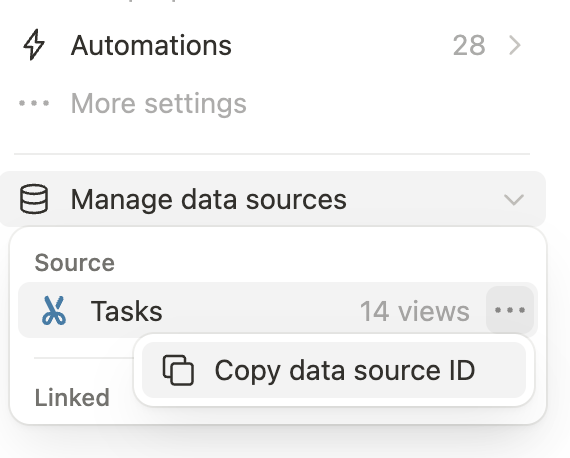
* To get the **data source ID**, either use the [Retrieve a database](/reference/retrieve-database) endpoint first and check the `data_sources` array, or use the overflow menu under "Manage data sources" to copy it from the Notion app:
Let's assume you're viewing a database as a table. The columns of the database are represented in the API by database [property objects](/reference/property-object). Property objects store a description of a column, including a type for all the values in a column.
You might recognize a few of the common types:
For each type, additional configuration may also be available. Let's take a look at the `properties` section of an example data source object.
```js Data Source object snippet theme={null}
{
"object": "data_source",
"properties": {
"Grocery item": {
"id": "fy%3A%7B", // URL-decoded: fy:{
"type": "title",
"title": {}
},
"Price": {
"id": "dia%5B", // URL-decoded: dia[
"type": "number",
"number": {
"format": "dollar"
}
},
"Last ordered": {
"id": "%5D%5C%5CR%5B", // URL-decoded: ]\\R[
"type": "date",
"date": {}
},
}
// ... remaining fields omitted
}
```
In this database object, there are three `properties` defined. Each key is the property name and each value is a property object. Here are some key takeaways:
* **The [`"title"`](/reference/property-object#title) type is special.** Every database has exactly one property with the `"title"` type. Properties of this type refer to the page title for each item in the database. In this example, the *Grocery item* property has this type.
* **The value of `type` corresponds to another key in the property object.** Each property object has a nested property named the same as its `type` value. For example, *Last ordered* has the type `"date"`, and it also has a `date` property. **This pattern is used throughout the Notion API on many objects and we call it type-specific data.**
* **Certain property object types have additional configuration.** In this example, *Price* has the type `"number"`. [Number property objects](/reference/property-object#number) have additional configuration inside the `number` property. In this example, the `format` configuration is set to `"dollar"` to control the appearance of page property values in this column.
### Iterate over a database object
A query to [Retrieve a database](/reference/retrieve-a-database) returns a database object. You can iterate over the `properties` object in the response to list information about each property. For example:
```javascript JavaScript theme={null}
Object.entries(database.properties).forEach(([propertyName, propertyValue]) => {
console.log(`${propertyName}: ${propertyValue.type}`);
});
```
## Adding pages to a data source
Pages are used as items inside a database, and each page's properties must conform to its parent database's schema. In other words, if you're viewing a database as a table, a page's properties define all the values in a single row.
**The page properties that are valid depend on the page's parent object.**
If you are [creating a page](/reference/post-page) in a database, the page properties must match the properties of the database. If you are creating a page that is not a child of a database, `title` is the only property that can be set.
Pages are added to a database using the [Create a page API endpoint](/reference/post-page). Let's try to add a page to the example database above.
The [Create a page](/reference/post-page) endpoint has two required parameters: `parent` and `properties`.
When adding a page to a database, the `parent` parameter must be a [database parent](/reference/parent-object). We can build this object for the example database above:
```js JSON theme={null}
{
"type": "data_source_id",
"data_source_id": "248104cd-477e-80af-bc30-000bd28de8f9"
}
```
**Permissions**
Before a connection can create a page within another page, it needs access to the page parent. To share a page with a connection, click the ••• menu at the top right of a page, scroll to `Add connections`, and use the search bar to find and select the connection from the dropdown list.
**Where can I find my database and data source's IDs?**
* Open the database as a full page in Notion.
* Use the `Share` menu to `Copy link`.
* Now paste the link in your text editor so you can take a closer look. The URL uses the following format:
```bash theme={null}
https://www.notion.so/{workspace_name}/{database_id}?v={view_id}
```
* Find the part that corresponds to `{database_id}` in the URL you pasted. It is a 36 character long string. This value is your **database ID**.
* Note that when you receive the database ID from the API, e.g. the [search](/reference/post-search) endpoint, it will contain hyphens in the UUIDv4 format. You may use either the hyphenated or un-hyphenated ID when calling the API.
* To get the **data source ID**, either use the [Retrieve a database](/reference/retrieve-database) endpoint first and check the `data_sources` array, or use the overflow menu under "Manage data sources" to copy it from the Notion app:
 Continuing the create page example above, the `properties` parameter is an object that uses property names or IDs as keys, and [property value objects](/reference/page-property-values) as values. In order to create this parameter correctly, you refer to the [property objects](/reference/property-object) in the database's schema as a blueprint. We can build this object for the example database above too:
```json JSON theme={null}
{
"Grocery item": {
"type": "title",
"title": [{ "type": "text", "text": { "content": "Tomatoes" } }]
},
"Price": {
"type": "number",
"number": 1.49
},
"Last ordered": {
"type": "date",
"date": { "start": "2021-05-11" }
}
}
```
**Building a property value object in code**
Building the property value object manually, as described in this guide, is only helpful when you're working with one specific database that you know about ahead of time.
In order to build a connection that works with any database a user picks, and to remain flexible as the user's chosen database inevitably changes in the future, use the [Retrieve a database](/reference/retrieve-database) endpoint, followed by [Retrieve a data source](/reference/retrieve-a-data-source). Your connection can call this endpoint to get a current data source schema, and then create the `properties` parameter in code based on that schema.
Using both the `parent` and `properties` parameters, we create a page by sending a request to [the endpoint](/reference/post-page).
```bash cURL expandable theme={null}
curl -X POST https://api.notion.com/v1/pages \
-H 'Authorization: Bearer '"$NOTION_API_KEY"'' \
-H "Content-Type: application/json" \
-H "Notion-Version: 2026-03-11" \
--data '{
"parent": { "type": "data_source_id", "data_source_id": "248104cd-477e-80af-bc30-000bd28de8f9" },
"properties": {
"Grocery item": {
"type": "title",
"title": [{ "type": "text", "text": { "content": "Tomatoes" } }]
},
"Price": {
"type": "number",
"number": 1.49
},
"Last ordered": {
"type": "date",
"date": { "start": "2021-05-11" }
}
}
}'
```
```javascript JavaScript expandable theme={null}
const { Client } = require('@notionhq/client');
const notion = new Client({ auth: process.env.NOTION_API_KEY });
(async () => {
const response = await notion.pages.create({
parent: {
data_source_id: '248104cd-477e-80af-bc30-000bd28de8f9',
},
properties: {
'Grocery item': {
type: 'title',
title: [
{
type: 'text',
text: {
content: 'Tomatoes',
},
},
],
},
Price: {
type: 'number',
number: 1.49,
},
'Last ordered': {
type: 'date',
date: {
start: '2021-05-11',
},
},
},
});
console.log(response);
})();
```
Once the page is added, you'll receive a response containing the new [page object](/reference/page). An important property in the response is the page ID (`id`). If you're connecting Notion to an external system, it's a good idea to store the page ID. If you want to update the page properties later, you can use the ID with the [Update page](/reference/patch-page) endpoint.
**Using a template**
When creating a page in the API, instead of populating the content manually, you can specify a data source template to apply.
Learn more about [database templates](https://www.notion.com/help/database-templates) in our Help Center, and then refer to the [Creating pages from templates](/guides/data-apis/creating-pages-from-templates) developer guide to get started.
## Finding pages in a data source
Pages can be read from a data source using the [Query a data source](/reference/query-a-data-source) endpoint. This endpoint allows you to find pages based on criteria such as "which page has the most recent *Last ordered date*". Some data sources are very large and this endpoint also allows you to get the results in a specific order, and get the results in smaller batches.
**Getting a specific page**
If you're looking for one specific page and already have its page ID, you don't need to query a data source to find it. Instead, use the [Retrieve a page](/reference/retrieve-a-page) endpoint.
### Filtering data source pages
The criteria used to find pages are called [filters](/reference/filter-data-source-entries). Filters can describe simple conditions (i.e. "*Tag* includes *Urgent*") or more complex conditions (i.e. "*Tag* includes *Urgent* AND *Due date* is within the next week AND *Assignee* equals *Cassandra Vasquez*"). These complex conditions are called [compound filters](/reference/filter-data-source-entries#compound-filter-conditions) because they use "and" or "or" to join multiple single property conditions together.
**Finding all pages in a data source**
To find all non-archived pages in a data source, send a request to the [query a data source](/reference/query-a-data-source) without a `filter` parameter. To query archived pages instead, set `is_archived` to `true`.
In this guide, let's focus on a single property condition using the example data source above. Looking at the data source schema, we know the *Last ordered* property uses the type `"date"`. This means we can build a filter for the *Last ordered* property using any [condition for the `"date"` type](/reference/filter-data-source-entries#date). The following filter object matches pages where the *Last ordered* date is in the past week:
```js JavaScript theme={null}
{
"property": "Last ordered",
"date": {
"past_week": {}
}
}
```
Using this filter, we can find all the pages in the example database that match the condition.
```bash cURL theme={null}
curl -X POST https://api.notion.com/v1/data_sources/248104cd477e80afbc30000bd28de8f9/query \
-H 'Authorization: Bearer '"$NOTION_API_KEY"'' \
-H "Content-Type: application/json" \
-H "Notion-Version: 2026-03-11" \
--data '{
"filter": {
"property": "Last ordered",
"date": {
"past_week": {}
}
}
}'
```
```javascript JavaScript theme={null}
const { Client } = require('@notionhq/client');
const notion = new Client({ auth: process.env.NOTION_API_KEY });
(async () => {
const dataSourceId = '248104cd-477e-80af-bc30-000bd28de8f9';
const response = await notion.dataSources.query({
data_source_id: dataSourceId,
filter: {
property: 'Last ordered',
date: {
past_week: {},
},
}
});
console.log(response);
})();
```
You'll receive a response that contains a list of matching [page objects](/reference/page).
```js JavaScript theme={null}
{
"object": "list",
"results": [
{
"object": "page",
/* details omitted */
}
],
"has_more": false,
"next_cursor": null
}
```
This is a paginated response. Paginated responses are used throughout the Notion API when returning a potentially large list of objects. The maximum number of results in one paginated response is 100. The [pagination reference](/reference/intro#pagination) explains how to use the `start_cursor` and `page_size` parameters to get more than 100 results.
A single query also returns at most 10,000 results in total. To read every page in a data source that holds more than that, see [Query large data sources](/guides/data-apis/query-large-data-sources).
### Sorting data source pages
In this case, the individual pages we requested are in the `"results"` array. What if our connection (or its users) cared most about pages that were created recently? It would be helpful if the results were ordered so that the most recently created page was first, especially if the results didn't fit into one paginated response.
The `sort` parameter is used to order results by individual properties or by timestamps. This parameter can be assigned an array of sort object.
The time which a page was created is not a page property (properties that conform to the data source schema). Instead, it's a property that every page has, and it's one of two kinds of timestamps. It is called the `"created_time"` timestamp. Let's build a [sort object](/reference/sort-data-source-entries) that orders results so the most recently created page is first:
```json JSON theme={null}
{
"timestamp": "created_time",
"direction": "descending"
}
```
Finally, let's update the request we made earlier to order the page results using this sort object:
```bash cURL theme={null}
curl -X POST https://api.notion.com/v1/data_sources/248104cd477e80afbc30000bd28de8f9/query \
-H 'Authorization: Bearer '"$NOTION_API_KEY"'' \
-H "Content-Type: application/json" \
-H "Notion-Version: 2026-03-11" \
--data '{
"filter": {
"property": "Last ordered",
"date": {
"past_week": {}
}
},
"sorts": [{ "timestamp": "created_time", "direction": "descending" }]
}'
```
```javascript JavaScript theme={null}
const { Client } = require('@notionhq/client');
const notion = new Client({ auth: process.env.NOTION_API_KEY });
(async () => {
const dataSourceId = '248104cd477e80afbc30000bd28de8f9';
const response = await notion.dataSources.query({
data_source_id: dataSourceId,
filter: {
property: 'Last ordered',
date: {
past_week: {},
},
},
sorts: [
{
timestamp: 'created_time',
direction: 'descending',
},
]
});
console.log(response);
})();
```
## Conclusion
Understanding data source schemas, made from a collection of properties, is key to working with Notion databases. This enables you to add, query for, and manage pages to a data source.
You're ready to help users take advantage of Notion's flexible and extensible data source interface to work with more kinds of data. There's more to learn and do with data sources in the resources below.
### Next steps
* This guide explains working with page properties. Take a look at [working with page content](/guides/data-apis/working-with-page-content).
* Explore the [database object](/reference/database) and [data source object](/reference/data-source) to see their other attributes available in the API.
* Learn about the other [page property value](/reference/page-property-values) types. In particular, try to do more with [rich text](/reference/rich-text).
* Learn more about [pagination](/reference/intro#pagination).
Continuing the create page example above, the `properties` parameter is an object that uses property names or IDs as keys, and [property value objects](/reference/page-property-values) as values. In order to create this parameter correctly, you refer to the [property objects](/reference/property-object) in the database's schema as a blueprint. We can build this object for the example database above too:
```json JSON theme={null}
{
"Grocery item": {
"type": "title",
"title": [{ "type": "text", "text": { "content": "Tomatoes" } }]
},
"Price": {
"type": "number",
"number": 1.49
},
"Last ordered": {
"type": "date",
"date": { "start": "2021-05-11" }
}
}
```
**Building a property value object in code**
Building the property value object manually, as described in this guide, is only helpful when you're working with one specific database that you know about ahead of time.
In order to build a connection that works with any database a user picks, and to remain flexible as the user's chosen database inevitably changes in the future, use the [Retrieve a database](/reference/retrieve-database) endpoint, followed by [Retrieve a data source](/reference/retrieve-a-data-source). Your connection can call this endpoint to get a current data source schema, and then create the `properties` parameter in code based on that schema.
Using both the `parent` and `properties` parameters, we create a page by sending a request to [the endpoint](/reference/post-page).
```bash cURL expandable theme={null}
curl -X POST https://api.notion.com/v1/pages \
-H 'Authorization: Bearer '"$NOTION_API_KEY"'' \
-H "Content-Type: application/json" \
-H "Notion-Version: 2026-03-11" \
--data '{
"parent": { "type": "data_source_id", "data_source_id": "248104cd-477e-80af-bc30-000bd28de8f9" },
"properties": {
"Grocery item": {
"type": "title",
"title": [{ "type": "text", "text": { "content": "Tomatoes" } }]
},
"Price": {
"type": "number",
"number": 1.49
},
"Last ordered": {
"type": "date",
"date": { "start": "2021-05-11" }
}
}
}'
```
```javascript JavaScript expandable theme={null}
const { Client } = require('@notionhq/client');
const notion = new Client({ auth: process.env.NOTION_API_KEY });
(async () => {
const response = await notion.pages.create({
parent: {
data_source_id: '248104cd-477e-80af-bc30-000bd28de8f9',
},
properties: {
'Grocery item': {
type: 'title',
title: [
{
type: 'text',
text: {
content: 'Tomatoes',
},
},
],
},
Price: {
type: 'number',
number: 1.49,
},
'Last ordered': {
type: 'date',
date: {
start: '2021-05-11',
},
},
},
});
console.log(response);
})();
```
Once the page is added, you'll receive a response containing the new [page object](/reference/page). An important property in the response is the page ID (`id`). If you're connecting Notion to an external system, it's a good idea to store the page ID. If you want to update the page properties later, you can use the ID with the [Update page](/reference/patch-page) endpoint.
**Using a template**
When creating a page in the API, instead of populating the content manually, you can specify a data source template to apply.
Learn more about [database templates](https://www.notion.com/help/database-templates) in our Help Center, and then refer to the [Creating pages from templates](/guides/data-apis/creating-pages-from-templates) developer guide to get started.
## Finding pages in a data source
Pages can be read from a data source using the [Query a data source](/reference/query-a-data-source) endpoint. This endpoint allows you to find pages based on criteria such as "which page has the most recent *Last ordered date*". Some data sources are very large and this endpoint also allows you to get the results in a specific order, and get the results in smaller batches.
**Getting a specific page**
If you're looking for one specific page and already have its page ID, you don't need to query a data source to find it. Instead, use the [Retrieve a page](/reference/retrieve-a-page) endpoint.
### Filtering data source pages
The criteria used to find pages are called [filters](/reference/filter-data-source-entries). Filters can describe simple conditions (i.e. "*Tag* includes *Urgent*") or more complex conditions (i.e. "*Tag* includes *Urgent* AND *Due date* is within the next week AND *Assignee* equals *Cassandra Vasquez*"). These complex conditions are called [compound filters](/reference/filter-data-source-entries#compound-filter-conditions) because they use "and" or "or" to join multiple single property conditions together.
**Finding all pages in a data source**
To find all non-archived pages in a data source, send a request to the [query a data source](/reference/query-a-data-source) without a `filter` parameter. To query archived pages instead, set `is_archived` to `true`.
In this guide, let's focus on a single property condition using the example data source above. Looking at the data source schema, we know the *Last ordered* property uses the type `"date"`. This means we can build a filter for the *Last ordered* property using any [condition for the `"date"` type](/reference/filter-data-source-entries#date). The following filter object matches pages where the *Last ordered* date is in the past week:
```js JavaScript theme={null}
{
"property": "Last ordered",
"date": {
"past_week": {}
}
}
```
Using this filter, we can find all the pages in the example database that match the condition.
```bash cURL theme={null}
curl -X POST https://api.notion.com/v1/data_sources/248104cd477e80afbc30000bd28de8f9/query \
-H 'Authorization: Bearer '"$NOTION_API_KEY"'' \
-H "Content-Type: application/json" \
-H "Notion-Version: 2026-03-11" \
--data '{
"filter": {
"property": "Last ordered",
"date": {
"past_week": {}
}
}
}'
```
```javascript JavaScript theme={null}
const { Client } = require('@notionhq/client');
const notion = new Client({ auth: process.env.NOTION_API_KEY });
(async () => {
const dataSourceId = '248104cd-477e-80af-bc30-000bd28de8f9';
const response = await notion.dataSources.query({
data_source_id: dataSourceId,
filter: {
property: 'Last ordered',
date: {
past_week: {},
},
}
});
console.log(response);
})();
```
You'll receive a response that contains a list of matching [page objects](/reference/page).
```js JavaScript theme={null}
{
"object": "list",
"results": [
{
"object": "page",
/* details omitted */
}
],
"has_more": false,
"next_cursor": null
}
```
This is a paginated response. Paginated responses are used throughout the Notion API when returning a potentially large list of objects. The maximum number of results in one paginated response is 100. The [pagination reference](/reference/intro#pagination) explains how to use the `start_cursor` and `page_size` parameters to get more than 100 results.
A single query also returns at most 10,000 results in total. To read every page in a data source that holds more than that, see [Query large data sources](/guides/data-apis/query-large-data-sources).
### Sorting data source pages
In this case, the individual pages we requested are in the `"results"` array. What if our connection (or its users) cared most about pages that were created recently? It would be helpful if the results were ordered so that the most recently created page was first, especially if the results didn't fit into one paginated response.
The `sort` parameter is used to order results by individual properties or by timestamps. This parameter can be assigned an array of sort object.
The time which a page was created is not a page property (properties that conform to the data source schema). Instead, it's a property that every page has, and it's one of two kinds of timestamps. It is called the `"created_time"` timestamp. Let's build a [sort object](/reference/sort-data-source-entries) that orders results so the most recently created page is first:
```json JSON theme={null}
{
"timestamp": "created_time",
"direction": "descending"
}
```
Finally, let's update the request we made earlier to order the page results using this sort object:
```bash cURL theme={null}
curl -X POST https://api.notion.com/v1/data_sources/248104cd477e80afbc30000bd28de8f9/query \
-H 'Authorization: Bearer '"$NOTION_API_KEY"'' \
-H "Content-Type: application/json" \
-H "Notion-Version: 2026-03-11" \
--data '{
"filter": {
"property": "Last ordered",
"date": {
"past_week": {}
}
},
"sorts": [{ "timestamp": "created_time", "direction": "descending" }]
}'
```
```javascript JavaScript theme={null}
const { Client } = require('@notionhq/client');
const notion = new Client({ auth: process.env.NOTION_API_KEY });
(async () => {
const dataSourceId = '248104cd477e80afbc30000bd28de8f9';
const response = await notion.dataSources.query({
data_source_id: dataSourceId,
filter: {
property: 'Last ordered',
date: {
past_week: {},
},
},
sorts: [
{
timestamp: 'created_time',
direction: 'descending',
},
]
});
console.log(response);
})();
```
## Conclusion
Understanding data source schemas, made from a collection of properties, is key to working with Notion databases. This enables you to add, query for, and manage pages to a data source.
You're ready to help users take advantage of Notion's flexible and extensible data source interface to work with more kinds of data. There's more to learn and do with data sources in the resources below.
### Next steps
* This guide explains working with page properties. Take a look at [working with page content](/guides/data-apis/working-with-page-content).
* Explore the [database object](/reference/database) and [data source object](/reference/data-source) to see their other attributes available in the API.
* Learn about the other [page property value](/reference/page-property-values) types. In particular, try to do more with [rich text](/reference/rich-text).
* Learn more about [pagination](/reference/intro#pagination).