> ## Documentation Index
> Fetch the complete documentation index at: https://developers.notion.com/llms.txt
> Use this file to discover all available pages before exploring further.
# Working with comments
> Learn how to add and retrieve comments with the Notion API.
export const developerConnectionsUrl = "https://app.notion.com/developers/connections";
## Overview
Notion offers the ability for developers to add [comments](https://www.notion.so/help/comments-mentions-and-reminders) to pages and page content (i.e. [blocks](/guides/data-apis/working-with-page-content#modeling-content-as-blocks)) within a workspace. Users may add comments:
* To the top of a page.
* Inline to text or other [blocks](/guides/data-apis/working-with-page-content#modeling-content-as-blocks) within a page.
When using the public API, inline comments can be used to respond to *existing* [discussions](#responding-to-a-discussion-thread).
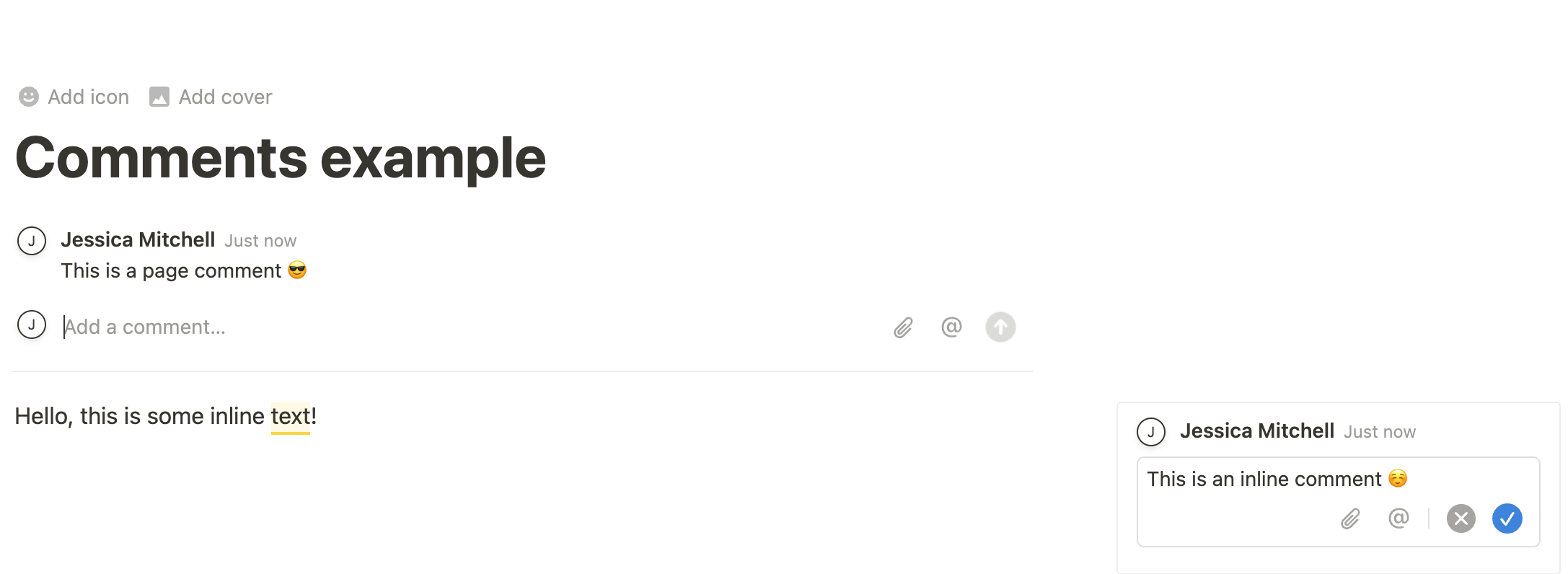 This guide will review how to use the public REST API to add and retrieve comments on a page. It will also look at considerations specific to [connections](https://www.notion.so/help/add-and-manage-connections-with-the-api) when retrieving or adding comments.
### Permissions
Before discussing how to use the public REST API to interact with comments, let’s first review who can comment on a page. Notion relies on a tiered system for [page permissions](https://www.notion.so/help/sharing-and-permissions#permission-levels), which can vary between:
* `Can view`
* `Can comment`
* `Can edit`
* `Full access`
When using the Notion UI, users must have `Can comment` access or higher (i.e. less restricted) to add comments to a page.
[Connections](/guides/get-started/overview#what-is-a-notion-connection) must also have comment permissions, which can be set in the Developer portal.
Connections are apps developers build to use the public API within a Notion workspace. Connections must be given explicit permissions to read/write content in a workspace, included content related to comments.
### Connection comments capabilities
To give your connection permission to interact with comments via the public REST API, configure the connection to have comment capabilities.
There are two relevant capabilities when it comes to comments — the ability to:
1. Read comments.
2. Write (or insert) comments.
Edit your connection's capabilities in the Developer portal. If these capabilities are not added to your connection, REST API requests related to comments will respond with an error.
This guide will review how to use the public REST API to add and retrieve comments on a page. It will also look at considerations specific to [connections](https://www.notion.so/help/add-and-manage-connections-with-the-api) when retrieving or adding comments.
### Permissions
Before discussing how to use the public REST API to interact with comments, let’s first review who can comment on a page. Notion relies on a tiered system for [page permissions](https://www.notion.so/help/sharing-and-permissions#permission-levels), which can vary between:
* `Can view`
* `Can comment`
* `Can edit`
* `Full access`
When using the Notion UI, users must have `Can comment` access or higher (i.e. less restricted) to add comments to a page.
[Connections](/guides/get-started/overview#what-is-a-notion-connection) must also have comment permissions, which can be set in the Developer portal.
Connections are apps developers build to use the public API within a Notion workspace. Connections must be given explicit permissions to read/write content in a workspace, included content related to comments.
### Connection comments capabilities
To give your connection permission to interact with comments via the public REST API, configure the connection to have comment capabilities.
There are two relevant capabilities when it comes to comments — the ability to:
1. Read comments.
2. Write (or insert) comments.
Edit your connection's capabilities in the Developer portal. If these capabilities are not added to your connection, REST API requests related to comments will respond with an error.
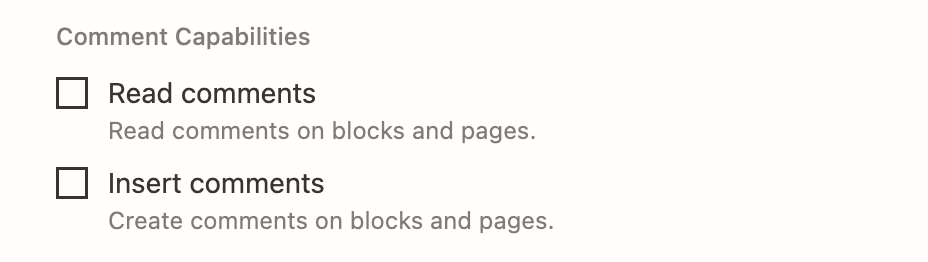 See our reference guide on [Capabilities](/reference/capabilities) for more information.
## Comments in Notion’s UI vs. using the REST API
In the Notion UI, users can:
* Add a comment to a page.
* Add an inline comment to child blocks on the page (i.e. comment on page content).
* Respond to an inline comment (i.e. add a comment to an existing discussion thread).
* Read open comments on a page or block.
* Read/re-open resolved comments on a page or block.
* Edit comments.
✅ Using the public REST API, connections **can**:
* Add a comment to a page.
* Update an existing comment.
* Delete a comment.
* Respond to an inline comment (i.e. add a comment to an existing discussion thread).
* Read open comments on a block or page.
❌ When using the public REST API, connections **cannot**:
* Start a new discussion thread.
* Retrieve resolved comments.
Keep an eye on our [Changelog](/page/changelog) for new features and updates to the REST API.
## Retrieving comments for a page or block
The [Retrieve comments](/reference/list-comments) endpoint can be used to list all open (or “un-resolved”) comments for a page or block. Whether you’re retrieving comments for a page or block, the `block_id` query parameter is used. This is because [pages are technically blocks](/guides/data-apis/working-with-page-content).
This endpoint returns a flatlist of comments associated with the ID provided; however, some block types may support multiple discussion threads. This means there may be multiple discussion threads included in the response. When this is the case, comments from all discussion threads will be returned in ascending chronological order. The threads can be distinguished by sorting them `discussion_id` field on each comment object.
```curl cURL theme={null}
curl 'https://api.notion.com/v1/comments?block_id=5c6a28216bb14a7eb6e1c50111515c3d'\
-H 'Authorization: Bearer '"$NOTION_API_KEY"'' \
-H "Notion-Version: 2026-03-11"
```
```javascript JavaScript theme={null}
const { Client } = require('@notionhq/client');
const notion = new Client({ auth: process.env.NOTION_API_KEY });
(async () => {
const blockId = 'd40e767c-d7af-4b18-a86d-55c61f1e39a4';
const response = await notion.comments.list({ block_id: blockId });
console.log(response);
})();
```
By default, the response from this endpoint returns a maximum of 100 items. To retrieve additional items, use [pagination](/reference/intro#pagination).
## Adding a comment to a page
You can add a top-level comment to a page by using the [Add comment to page](/reference/create-a-comment) endpoint. Requests made to this endpoint require the ID for the parent page, as well as a comment body provided as either [rich text](/reference/rich-text) or a Markdown string with inline formatting support.
The `rich_text` and `markdown` parameters are mutually exclusive — exactly one must be provided per request.
```bash Shell (rich_text) theme={null}
curl -X POST https://api.notion.com/v1/comments \
-H 'Authorization: Bearer '"$NOTION_API_KEY"'' \
-H "Content-Type: application/json" \
-H "Notion-Version: 2026-03-11" \
--data '
{
"parent": {
"page_id": "59e3eb41-33b2-4151-b05b-31115a15e1c2"
},
"rich_text": [
{
"text": {
"content": "Hello from my connection."
}
}
]
}
'
```
```bash Shell (markdown) theme={null}
curl -X POST https://api.notion.com/v1/comments \
-H 'Authorization: Bearer '"$NOTION_API_KEY"'' \
-H "Content-Type: application/json" \
-H "Notion-Version: 2026-03-11" \
--data '
{
"parent": {
"page_id": "59e3eb41-33b2-4151-b05b-31115a15e1c2"
},
"markdown": "Hello from my connection. Here is **bold** and *italic* text."
}
'
```
```javascript JavaScript theme={null}
const { Client } = require('@notionhq/client');
const notion = new Client({ auth: process.env.NOTION_API_KEY });
(async () => {
const response = await notion.comments.create({
parent: {
page_id: "59e3eb41-33b2-4151-b05b-31115a15e1c2"
},
rich_text: [
{
text: {
content: "Hello from my connection.",
},
},
],
});
console.log(response);
})();
```
The `markdown` parameter is a convenient alternative to `rich_text` for agents and scripts that work with Markdown natively. It supports:
* Inline formatting: bold (`**text**`), italic (`*text*`), strikethrough (`~~text~~`), inline code (`` `text` ``), and links (`[text](url)`)
* Inline equations: `$x^2$` or `$$E = mc^2$$`
* User mentions: `name`
* Page mentions: `title`
* Database mentions: `title`
* Date mentions: `` or ``
Block-level Markdown such as fenced code blocks, headings, lists, tables, and blockquotes does not render as structured blocks in comments.
The response will contain the new [comment object](/reference/comment-object).
The exception to what will be returned occurs if your connection has “write comment” capabilities but not “read comment” capabilities. In this situation, the response will be a partial object consisting of only the `id` and `object` fields. This is because the connection can create new comments but can’t retrieve comments, even if the retrieval is just the response for the newly created one. (Reminder: Update the read/write settings in the Developer portal.)
In the Notion UI, this new comment will be displayed on the page using your connection's name and icon.
## Updating a comment
You can update the content of an existing comment using the [Update comment](/reference/update-a-comment) endpoint. The request requires the `comment_id` of the comment to update and a new body provided as either [rich text](/reference/rich-text) or a Markdown string.
The `rich_text` and `markdown` parameters are mutually exclusive — exactly one must be provided per request.
```bash Shell (rich_text) theme={null}
curl -X PATCH https://api.notion.com/v1/comments/ce18f8c6-ef2a-427f-b416-43531fc7c117 \
-H 'Authorization: Bearer '"$NOTION_API_KEY"'' \
-H "Content-Type: application/json" \
-H "Notion-Version: 2026-03-11" \
--data '
{
"rich_text": [
{
"text": {
"content": "Updated comment text."
}
}
]
}
'
```
```bash Shell (markdown) theme={null}
curl -X PATCH https://api.notion.com/v1/comments/ce18f8c6-ef2a-427f-b416-43531fc7c117 \
-H 'Authorization: Bearer '"$NOTION_API_KEY"'' \
-H "Content-Type: application/json" \
-H "Notion-Version: 2026-03-11" \
--data '
{
"markdown": "Updated comment with **bold** and *italic* text."
}
'
```
```javascript JavaScript theme={null}
const { Client } = require('@notionhq/client');
const notion = new Client({ auth: process.env.NOTION_API_KEY });
(async () => {
const response = await notion.comments.update({
comment_id: "ce18f8c6-ef2a-427f-b416-43531fc7c117",
rich_text: [
{
text: {
content: "Updated comment text.",
},
},
],
});
console.log(response);
})();
```
The response will contain the updated [comment object](/reference/comment-object).
## Deleting a comment
You can delete a comment using the [Delete comment](/reference/delete-a-comment) endpoint. The request requires the `comment_id` of the comment to delete.
A connection can only delete comments that it created. If the discussion thread is left empty after deleting the last comment, the discussion itself is also removed.
```bash Shell theme={null}
curl -X DELETE https://api.notion.com/v1/comments/ce18f8c6-ef2a-427f-b416-43531fc7c117 \
-H 'Authorization: Bearer '"$NOTION_API_KEY"'' \
-H "Notion-Version: 2026-03-11"
```
```javascript JavaScript theme={null}
const { Client } = require('@notionhq/client');
const notion = new Client({ auth: process.env.NOTION_API_KEY });
(async () => {
const response = await notion.comments.delete({
comment_id: "ce18f8c6-ef2a-427f-b416-43531fc7c117",
});
console.log(response);
})();
```
The response will contain the deleted [comment object](/reference/comment-object).
## Inline comments
### Responding to a discussion thread
The [Add comment to page](/reference/create-a-comment) endpoint can also be used to respond to a discussion thread on a block. (Reminder: Page blocks are the child elements that make up the page content, like a paragraph, header, to-do list, etc.)
If using this endpoint to respond to a discussion, provide a `discussion_id` parameter *instead of* a `parent.page_id`.
Inline comments cannot be directly added to blocks to start a new discussion using the public API. Currently, the API can only be used to respond to inline comments (discussions).
#### Retrieving a discussion ID
The are two possible ways to get the `discussion_id` for a discussion thread.
1. You can use the [Retrieve comments](/reference/list-comments) endpoint, which will return a list of open comments on the page or block.
2. You can also get a `discussion_id` manually by navigating to the page with the discussion you’re responding to. Next, click the "Copy link to discussion" menu option next to the discussion.
See our reference guide on [Capabilities](/reference/capabilities) for more information.
## Comments in Notion’s UI vs. using the REST API
In the Notion UI, users can:
* Add a comment to a page.
* Add an inline comment to child blocks on the page (i.e. comment on page content).
* Respond to an inline comment (i.e. add a comment to an existing discussion thread).
* Read open comments on a page or block.
* Read/re-open resolved comments on a page or block.
* Edit comments.
✅ Using the public REST API, connections **can**:
* Add a comment to a page.
* Update an existing comment.
* Delete a comment.
* Respond to an inline comment (i.e. add a comment to an existing discussion thread).
* Read open comments on a block or page.
❌ When using the public REST API, connections **cannot**:
* Start a new discussion thread.
* Retrieve resolved comments.
Keep an eye on our [Changelog](/page/changelog) for new features and updates to the REST API.
## Retrieving comments for a page or block
The [Retrieve comments](/reference/list-comments) endpoint can be used to list all open (or “un-resolved”) comments for a page or block. Whether you’re retrieving comments for a page or block, the `block_id` query parameter is used. This is because [pages are technically blocks](/guides/data-apis/working-with-page-content).
This endpoint returns a flatlist of comments associated with the ID provided; however, some block types may support multiple discussion threads. This means there may be multiple discussion threads included in the response. When this is the case, comments from all discussion threads will be returned in ascending chronological order. The threads can be distinguished by sorting them `discussion_id` field on each comment object.
```curl cURL theme={null}
curl 'https://api.notion.com/v1/comments?block_id=5c6a28216bb14a7eb6e1c50111515c3d'\
-H 'Authorization: Bearer '"$NOTION_API_KEY"'' \
-H "Notion-Version: 2026-03-11"
```
```javascript JavaScript theme={null}
const { Client } = require('@notionhq/client');
const notion = new Client({ auth: process.env.NOTION_API_KEY });
(async () => {
const blockId = 'd40e767c-d7af-4b18-a86d-55c61f1e39a4';
const response = await notion.comments.list({ block_id: blockId });
console.log(response);
})();
```
By default, the response from this endpoint returns a maximum of 100 items. To retrieve additional items, use [pagination](/reference/intro#pagination).
## Adding a comment to a page
You can add a top-level comment to a page by using the [Add comment to page](/reference/create-a-comment) endpoint. Requests made to this endpoint require the ID for the parent page, as well as a comment body provided as either [rich text](/reference/rich-text) or a Markdown string with inline formatting support.
The `rich_text` and `markdown` parameters are mutually exclusive — exactly one must be provided per request.
```bash Shell (rich_text) theme={null}
curl -X POST https://api.notion.com/v1/comments \
-H 'Authorization: Bearer '"$NOTION_API_KEY"'' \
-H "Content-Type: application/json" \
-H "Notion-Version: 2026-03-11" \
--data '
{
"parent": {
"page_id": "59e3eb41-33b2-4151-b05b-31115a15e1c2"
},
"rich_text": [
{
"text": {
"content": "Hello from my connection."
}
}
]
}
'
```
```bash Shell (markdown) theme={null}
curl -X POST https://api.notion.com/v1/comments \
-H 'Authorization: Bearer '"$NOTION_API_KEY"'' \
-H "Content-Type: application/json" \
-H "Notion-Version: 2026-03-11" \
--data '
{
"parent": {
"page_id": "59e3eb41-33b2-4151-b05b-31115a15e1c2"
},
"markdown": "Hello from my connection. Here is **bold** and *italic* text."
}
'
```
```javascript JavaScript theme={null}
const { Client } = require('@notionhq/client');
const notion = new Client({ auth: process.env.NOTION_API_KEY });
(async () => {
const response = await notion.comments.create({
parent: {
page_id: "59e3eb41-33b2-4151-b05b-31115a15e1c2"
},
rich_text: [
{
text: {
content: "Hello from my connection.",
},
},
],
});
console.log(response);
})();
```
The `markdown` parameter is a convenient alternative to `rich_text` for agents and scripts that work with Markdown natively. It supports:
* Inline formatting: bold (`**text**`), italic (`*text*`), strikethrough (`~~text~~`), inline code (`` `text` ``), and links (`[text](url)`)
* Inline equations: `$x^2$` or `$$E = mc^2$$`
* User mentions: `name`
* Page mentions: `title`
* Database mentions: `title`
* Date mentions: `` or ``
Block-level Markdown such as fenced code blocks, headings, lists, tables, and blockquotes does not render as structured blocks in comments.
The response will contain the new [comment object](/reference/comment-object).
The exception to what will be returned occurs if your connection has “write comment” capabilities but not “read comment” capabilities. In this situation, the response will be a partial object consisting of only the `id` and `object` fields. This is because the connection can create new comments but can’t retrieve comments, even if the retrieval is just the response for the newly created one. (Reminder: Update the read/write settings in the Developer portal.)
In the Notion UI, this new comment will be displayed on the page using your connection's name and icon.
## Updating a comment
You can update the content of an existing comment using the [Update comment](/reference/update-a-comment) endpoint. The request requires the `comment_id` of the comment to update and a new body provided as either [rich text](/reference/rich-text) or a Markdown string.
The `rich_text` and `markdown` parameters are mutually exclusive — exactly one must be provided per request.
```bash Shell (rich_text) theme={null}
curl -X PATCH https://api.notion.com/v1/comments/ce18f8c6-ef2a-427f-b416-43531fc7c117 \
-H 'Authorization: Bearer '"$NOTION_API_KEY"'' \
-H "Content-Type: application/json" \
-H "Notion-Version: 2026-03-11" \
--data '
{
"rich_text": [
{
"text": {
"content": "Updated comment text."
}
}
]
}
'
```
```bash Shell (markdown) theme={null}
curl -X PATCH https://api.notion.com/v1/comments/ce18f8c6-ef2a-427f-b416-43531fc7c117 \
-H 'Authorization: Bearer '"$NOTION_API_KEY"'' \
-H "Content-Type: application/json" \
-H "Notion-Version: 2026-03-11" \
--data '
{
"markdown": "Updated comment with **bold** and *italic* text."
}
'
```
```javascript JavaScript theme={null}
const { Client } = require('@notionhq/client');
const notion = new Client({ auth: process.env.NOTION_API_KEY });
(async () => {
const response = await notion.comments.update({
comment_id: "ce18f8c6-ef2a-427f-b416-43531fc7c117",
rich_text: [
{
text: {
content: "Updated comment text.",
},
},
],
});
console.log(response);
})();
```
The response will contain the updated [comment object](/reference/comment-object).
## Deleting a comment
You can delete a comment using the [Delete comment](/reference/delete-a-comment) endpoint. The request requires the `comment_id` of the comment to delete.
A connection can only delete comments that it created. If the discussion thread is left empty after deleting the last comment, the discussion itself is also removed.
```bash Shell theme={null}
curl -X DELETE https://api.notion.com/v1/comments/ce18f8c6-ef2a-427f-b416-43531fc7c117 \
-H 'Authorization: Bearer '"$NOTION_API_KEY"'' \
-H "Notion-Version: 2026-03-11"
```
```javascript JavaScript theme={null}
const { Client } = require('@notionhq/client');
const notion = new Client({ auth: process.env.NOTION_API_KEY });
(async () => {
const response = await notion.comments.delete({
comment_id: "ce18f8c6-ef2a-427f-b416-43531fc7c117",
});
console.log(response);
})();
```
The response will contain the deleted [comment object](/reference/comment-object).
## Inline comments
### Responding to a discussion thread
The [Add comment to page](/reference/create-a-comment) endpoint can also be used to respond to a discussion thread on a block. (Reminder: Page blocks are the child elements that make up the page content, like a paragraph, header, to-do list, etc.)
If using this endpoint to respond to a discussion, provide a `discussion_id` parameter *instead of* a `parent.page_id`.
Inline comments cannot be directly added to blocks to start a new discussion using the public API. Currently, the API can only be used to respond to inline comments (discussions).
#### Retrieving a discussion ID
The are two possible ways to get the `discussion_id` for a discussion thread.
1. You can use the [Retrieve comments](/reference/list-comments) endpoint, which will return a list of open comments on the page or block.
2. You can also get a `discussion_id` manually by navigating to the page with the discussion you’re responding to. Next, click the "Copy link to discussion" menu option next to the discussion.
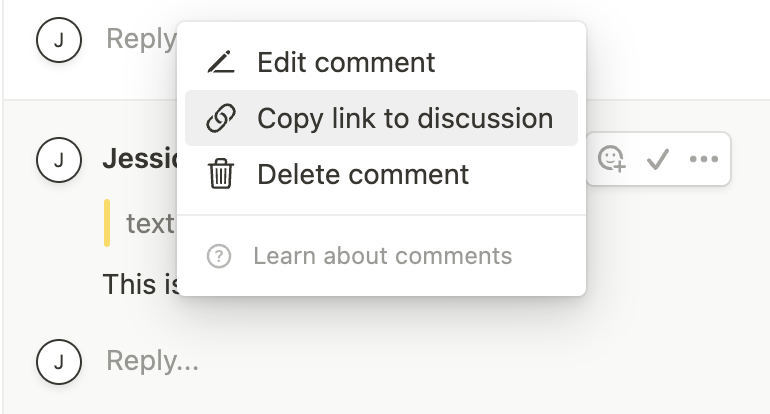 This will give you a URL like:
```bash theme={null}
https://notion.so/Something-something-a8d5215b89ae464b821ae2e2916ab9ce?d=5e73b63447c2428fa899e906b1f1d20e#b3e87b2b5e114cbd99f96288c22bacce
```
The value of the `d` query parameter is the `discussion_id`.
Once you have the `discussion_id`, you can make a request to respond to the thread like so:
```bash cURL (rich_text) theme={null}
curl -X POST https://api.notion.com/v1/comments \
-H 'Authorization: Bearer '"$NOTION_API_KEY"'' \
-H "Content-Type: application/json" \
-H "Notion-Version: 2026-03-11" \
--data '
{
"discussion_id": "59e3eb41-33b2-4151-b05b-31115a15e1c2",
"rich_text": [
{
"text": {
"content": "Hello from my connection."
}
}
]
}
'
```
```bash cURL (markdown) theme={null}
curl -X POST https://api.notion.com/v1/comments \
-H 'Authorization: Bearer '"$NOTION_API_KEY"'' \
-H "Content-Type: application/json" \
-H "Notion-Version: 2026-03-11" \
--data '
{
"discussion_id": "59e3eb41-33b2-4151-b05b-31115a15e1c2",
"markdown": "Hello from my connection."
}
'
```
```javascript JavaScript theme={null}
const { Client } = require('@notionhq/client');
const notion = new Client({ auth: process.env.NOTION_API_KEY });
(async () => {
const response = await notion.comments.create({
"discussion_id": "8fa6e3ecbebf494b94bae5e9737842fb"
"rich_text": [
{
"text": {
"content": "Hello world"
}
}
]
});
console.log(response);
})();
```
## Conclusion
In this guide, you learned about comment permissions and how to interact with page and block-level comments using Notion’s public REST API. There are many potential use-cases for this type of interaction, such as:
* Commenting on a task when a related pull request is merged.
* Periodically pasting reminders to any pages that meet a certain criteria. For example, you could use the [Query a data source](/reference/query-a-data-source) endpoint to search for a certain criteria and add a comment to any pages that do.
* For apps that use Notion as a CMS (Content Management System) — like a blog — users can give feedback to pages by adding a comment.
## Next steps
* Check out the [API reference documentation](/reference/comment-object) for the comments API.
* Update your version of the Notion JavaScript SDK to make use of this API: `npm install @notionhq/client@latest`.
* Clone our [notion-sdk-typescript-starter](https://github.com/makenotion/notion-sdk-typescript-starter) template repository for an easy way to get started using the API with [TypeScript](https://typescriptlang.org/).
This will give you a URL like:
```bash theme={null}
https://notion.so/Something-something-a8d5215b89ae464b821ae2e2916ab9ce?d=5e73b63447c2428fa899e906b1f1d20e#b3e87b2b5e114cbd99f96288c22bacce
```
The value of the `d` query parameter is the `discussion_id`.
Once you have the `discussion_id`, you can make a request to respond to the thread like so:
```bash cURL (rich_text) theme={null}
curl -X POST https://api.notion.com/v1/comments \
-H 'Authorization: Bearer '"$NOTION_API_KEY"'' \
-H "Content-Type: application/json" \
-H "Notion-Version: 2026-03-11" \
--data '
{
"discussion_id": "59e3eb41-33b2-4151-b05b-31115a15e1c2",
"rich_text": [
{
"text": {
"content": "Hello from my connection."
}
}
]
}
'
```
```bash cURL (markdown) theme={null}
curl -X POST https://api.notion.com/v1/comments \
-H 'Authorization: Bearer '"$NOTION_API_KEY"'' \
-H "Content-Type: application/json" \
-H "Notion-Version: 2026-03-11" \
--data '
{
"discussion_id": "59e3eb41-33b2-4151-b05b-31115a15e1c2",
"markdown": "Hello from my connection."
}
'
```
```javascript JavaScript theme={null}
const { Client } = require('@notionhq/client');
const notion = new Client({ auth: process.env.NOTION_API_KEY });
(async () => {
const response = await notion.comments.create({
"discussion_id": "8fa6e3ecbebf494b94bae5e9737842fb"
"rich_text": [
{
"text": {
"content": "Hello world"
}
}
]
});
console.log(response);
})();
```
## Conclusion
In this guide, you learned about comment permissions and how to interact with page and block-level comments using Notion’s public REST API. There are many potential use-cases for this type of interaction, such as:
* Commenting on a task when a related pull request is merged.
* Periodically pasting reminders to any pages that meet a certain criteria. For example, you could use the [Query a data source](/reference/query-a-data-source) endpoint to search for a certain criteria and add a comment to any pages that do.
* For apps that use Notion as a CMS (Content Management System) — like a blog — users can give feedback to pages by adding a comment.
## Next steps
* Check out the [API reference documentation](/reference/comment-object) for the comments API.
* Update your version of the Notion JavaScript SDK to make use of this API: `npm install @notionhq/client@latest`.
* Clone our [notion-sdk-typescript-starter](https://github.com/makenotion/notion-sdk-typescript-starter) template repository for an easy way to get started using the API with [TypeScript](https://typescriptlang.org/).