> ## Documentation Index
> Fetch the complete documentation index at: https://developers.notion.com/llms.txt
> Use this file to discover all available pages before exploring further.
# Creating pages from templates
> Learn how to apply data source templates to pages created in the Notion API.
## Overview
[Database templates](https://www.notion.com/help/database-templates) save time when adding a new page to a data source. Instead of building manually from a blank page, templates accelerate your workflows by providing a blueprint for the page's properties and content.
For example, a bug tracking database can have templates for various types of bugs, like "Urgent Production Bug" and "User Interface (UI) Bug".
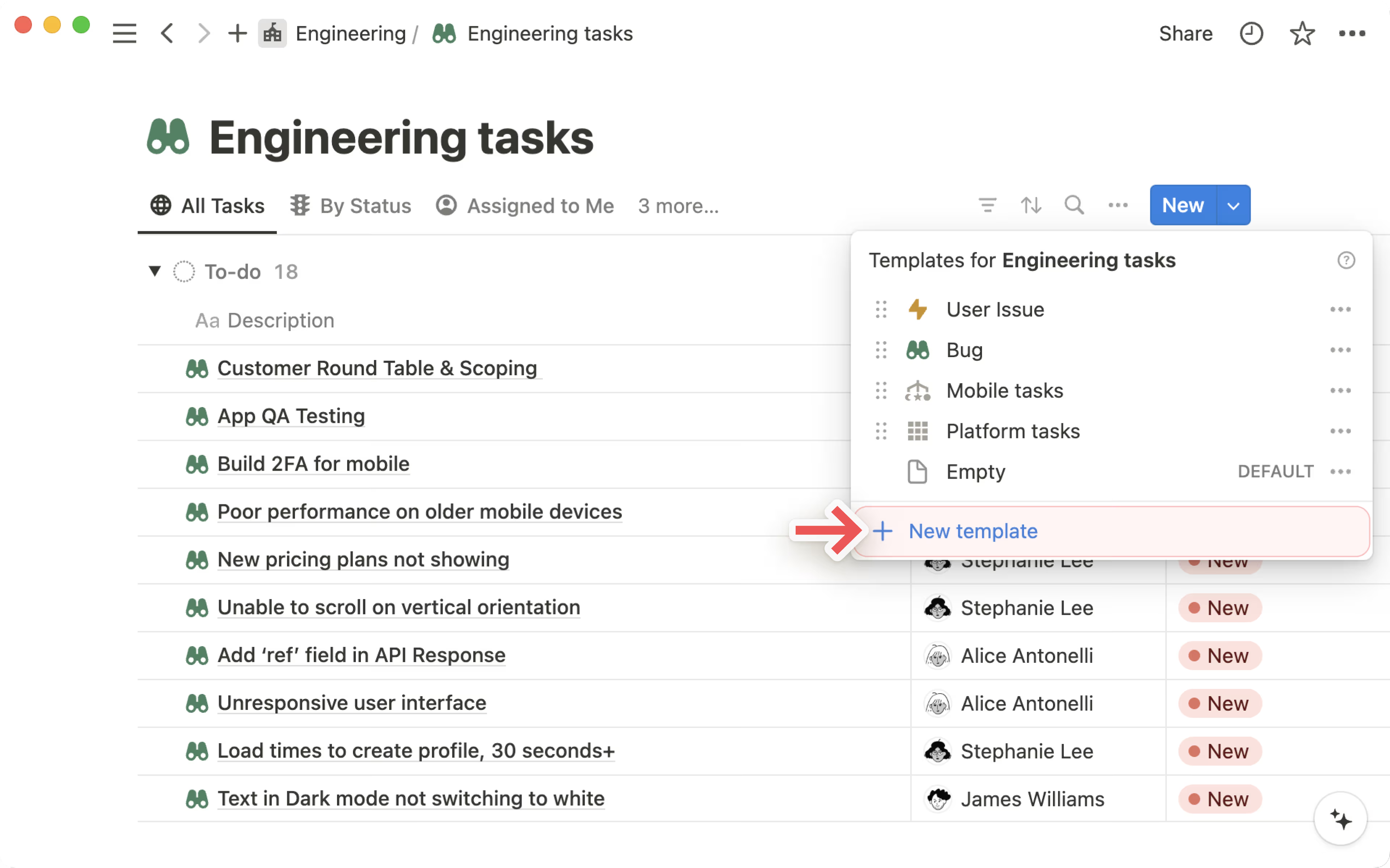
The Notion app can be used to create and manage templates, and designate one as the "default" template:
 To take advantage of templates when creating pages in the API, the three main steps are:
Use the [List data source templates](/reference/list-data-source-templates) endpoint, or manually navigate to the template in the Notion app and get its ID. Skip this step if you want to apply the data source's "default" template.
Provide a `template[type]` of `default`, or of `template_id` alongside a `template[template_id]`, to the [Create a page](/reference/post-page) API to kick off the process of "duplicating" a template into a new page.
1. Remember to use a `parent[type]` of `data_source_id` and provide a `parent[data_source_id]` when creating a page under a data source.
2. Store the ID of the newly created page in your app's backend storage systems. This will be necessary in the next step, since the returned page is momentarily blank until the template finishes applying.
If your connection needs to perform additional steps once a template has finished applying to a page and it's ready for use, wait for Notion's systems to populate the page content before proceeding.
1. Register an handler for [connection webhooks](/reference/webhooks) that listens to `page.created` and `page.content_updated` events and uses the [Retrieve block children](/reference/get-block-children) API to confirm the page contents are populated.
## Step 1: Identify the template to use
For connections using the Notion API, use the [List data source templates](/reference/list-data-source-templates) endpoint to retrieve a list of template IDs and titles:
```bash cURL example theme={null}
curl --request GET \
--url 'https://api.notion.com/v1/data_sources/b55c9c91-384d-452b-81db-d1ef79372b75/templates' \
-H 'Notion-Version: 2026-03-11' \
-H 'Authorization: Bearer '"$NOTION_API_KEY"''
```
The API response includes a similar set of information as the Notion app displays in the screenshot above, listing up to 100 templates at a time:
```json JSON response example expandable theme={null}
{
"templates": [
{
"id": "a5da15f6-b853-455d-8827-f906fb52db2b",
"name": "New Generic Task",
"is_default": true
},
{
"id": "9cc74169-8dd7-4104-8b36-ed952ac44bd0",
"name": "New UI Task",
"is_default": false
},
{
"id": "f2d298e3-efeb-4401-bf4f-67e7b194694f",
"name": "New Support Task",
"is_default": false
}
],
"has_more": false,
"next_cursor": null
}
```
**Filtering templates by name**
Use the `name` query parameter to filter the results down to only templates that match the provided substring (case-insensitive).
This can be helpful for narrowing down which template you want, especially when working with a data source that has a large number of templates.
The other available query parameters are: `page_size` (1-100) and `start_cursor` (nullable string); these are used for pagination.
Aside from this API endpoint, templates are regular [pages](/reference/page) in Notion, so you can also get the template ID by opening the template, copying the URL, and extracting the ID from it.
For example, if the template looks like `https://notion.so/notion/New-Hire-Onboarding-a07589e357414b3285a8d02beb8fd9dd`, the template `id` is `a07589e357414b3285a8d02beb8fd9dd`.
Determining the ID of a template will be useful in the next step, where we'll create pages using templates.
## Step 2: Create page using a template
By default, [adding pages to a data source](/guides/data-apis/working-with-databases#adding-pages-to-a-data-source) creates them with only the block `children` you provide. In other words, the content has to be built up from scratch manually.
In the [Create a page](/reference/post-page) API, this corresponds to the `template[type] = "none"` parameter. The two other options for `type` allow you to start taking advantage of the power of templates at page creation time:
| `template[type]` | `template[template_id]` | `template[timezone]` | Behavior |
| :------------------ | :---------------------- | :------------------- | :------------------------------------------------------------------------------------------------------------------------------------------------------------------------------------------------------------------------------------------------------------------------------------------------------------------ |
| `none` (or omitted) | N/A | N/A | No template. Provided children and properties are immediately applied. |
| `default` | N/A | *(optional)* | Applies the data source's default template to the newly created page. `children` cannot be specified in the create page request. |
| `template_id` | *(ID of a template)* | *(optional)* | Use an ID from the response of [List data source templates](/reference/list-data-source-templates), or copied from a URL, as the `template_id`. Indicates which exact template to apply to the newly created page. ID can be with or without dashes (-). `children` cannot be specified in the create page request. |
When using a template — either the `default` template or a specific `template_id` — the Create Page API request returns immediately with a [Page](/reference/page) object representing a blank page, aside from any initial `properties` (for example, the `title`) set on it. Store the ID of this page in your backend systems if you need it for Step 3 below.
Afterwards, Notion's systems quickly begin applying the chosen template in the background, replacing the page content and merging in the template's properties. Any placeholder values (e.g. "Current time when duplicating template"), are appropriately populated, the same way they would be when a Notion user applies a template in the app. The key difference is that the API bot user (rather than a person) is set as the "created by" user (i.e. author) of the new page.
**Timezone control**: Template variables like `@now` and `@today` resolve using a timezone. By default, public connections and [personal access tokens](/guides/get-started/personal-access-tokens) use the associated user's timezone, and internal connections use UTC. To override this, pass an [IANA timezone](https://en.wikipedia.org/wiki/List_of_tz_database_time_zones) string in `template[timezone]` (e.g. `America/New_York`, `Europe/London`, `Asia/Tokyo`).
**Check page and database permissions**
The Notion API returns an HTTP 400 `validation_error` response in the following scenarios:
* **The provided template ID is invalid**. Template IDs are UUIDs (v4) and look like page IDs in Notion.
* **The connection doesn't have access to the template**. Generally, if a bot is connected to the data source's parent database, those permissions apply to all templates for the data source by default, since templates are represented as (special) pages under the data source.
* However, to confirm, check the "Connections" list under the 3-dot overflow menu for a template to ensure your bot appears in the list.
* **Attempting to apply the default template when there isn't one**. When using `template[type]=default`, ensure the `parent` in the Create Page request is pointing to the correct `data_source_id`, and that the data source has a template that's marked as "default".
## Step 3: Confirm page contents are ready
After Step 2, Notion's systems asynchronously begin processing a task to populate the page contents and properties based on the template you identified. In most cases, this is visually very prompt when viewing the data source in the Notion app, but for API connections, you might need an additional step to wait for processing to complete, in cases where your connection needs to take action once the page is ready.
### Webhook setup
Go through the [Webhooks](/reference/webhooks) guide to set up a webhook URL for your connection, and make sure you're using the newest API version in your webhook settings. Also, make sure you have enabled `page.created` and `page.content_updated` events.
### How aggregated events work
Internally, Notion produces a `page.content_updated` event once the template duplication is complete, but in the API, such events might be aggregated into the base `page.created` event if they take place in a short enough time window, which will generally be the case. As a result, you might not see the `page.created` event immediately after Step 2 (the [Create a page](/reference/post-page) call). In these cases, the `page.created` event will be deferred until the page is ready.
In rare cases, or for complex templates, Notion's processing of the page might take longer. In this case, your connection may receive the `page.created` event for the blank page created from Step 2, and subsequently, a `page.content_updated` event when the page is ready.
For more information on event aggregation, refer to [the detailed event types reference](/reference/webhooks-events-delivery#event-aggregation) .
### Webhook implementation
Putting the above flow together, your webhook handler can implement logic as follows:
* When receiving a `page.created` or `page.content_updated` event with the entity ID matching the page Id created in Step 2 👀:
* If the event is `page.content_updated`, you know the template has finished applying, and can proceed to any further steps your connection needs to take ✅.
* If the event is `page.created`, call the [Retrieve block children](/reference/get-block-children) API using the page ID to check if the page content is a blank array, or if it includes the content you expect from the template 👀.
* If the page contents have been populated, you know the template has finished applying, and can proceed to any further steps your connection needs to take ✅,
* Otherwise, stop processing and wait for a `page.content_updated` event signaling the completion of applying the template ⏳.
## Frequently asked questions
In Step 2, the `template_id` parameter can be set to any page, not necessarily a page officially designated as a "template" in the same data source.
However, in all cases, the API bot must have access to the page being used as a template, and it must be in the same workspace. Using the ID of a page in a different data source is currently not recommended, because the schema may not match, causing some properties to fail to be merged into the destination page.
When using a `type` of `default` instead of `template_id`, the conditions are more strict: the page you're creating must be under a data source that has a template marked as "default". Use the [List data source templates](/reference/list-data-source-templates) API
Yes! The [Update page](/reference/patch-page) API also supports a `template` body parameter, with a `type` of either `default` or `template_id`. You can also pass `template[timezone]` to control the timezone for template variable resolution.
When applying a template to an existing page, the template's content is appended to any existing page content. There's another optional body parameter, `erase_content`, that can be set to `true` if you instead want the template's content to fully replace any existing page content. Use caution with this flag, as this is a destructive operation that cannot be reversed in the API!
If you're using the Notion TypeScript SDK, upgrade to [version 5.3.0](https://github.com/makenotion/notion-sdk-js/releases/tag/v5.3.0) or newer to get access to the APIs described in this guide.
If you're using an API version older than `2025-09-03`, we recommend first following the [Upgrading to Version 2025-09-03](/guides/get-started/upgrade-guide-2025-09-03) guide to upgrade, since v5+ of the SDK goes hand-in-hand with a minimum `Notion-Version` of `2025-09-03`.
Until you upgrade to the latest version of the SDK, the only way to use these APIs is to craft [custom requests](https://github.com/makenotion/notion-sdk-js?tab=readme-ov-file#custom-requests) using `notion.request(...)`, which may result in degraded static type safety.
Yes! Refer to example `intermediate:6` in the [`intro-to-notion-api` example project](https://github.com/makenotion/notion-sdk-js/tree/9ed31fd7b47b8e799d1a66ee2ae19e89841b8194/examples/intro-to-notion-api).
Yes! The [Notion MCP](/guides/mcp/overview) supports templates in the `notion-create-pages` and `notion-update-page` tools.
* Use the `notion-fetch` tool on a database to see available templates listed in `` tags for each data source.
* Pass a `template_id` when creating a page to pre-populate it from the template.
* Use the `apply_template` command in `notion-update-page` to apply a template to an existing page.
To take advantage of templates when creating pages in the API, the three main steps are:
Use the [List data source templates](/reference/list-data-source-templates) endpoint, or manually navigate to the template in the Notion app and get its ID. Skip this step if you want to apply the data source's "default" template.
Provide a `template[type]` of `default`, or of `template_id` alongside a `template[template_id]`, to the [Create a page](/reference/post-page) API to kick off the process of "duplicating" a template into a new page.
1. Remember to use a `parent[type]` of `data_source_id` and provide a `parent[data_source_id]` when creating a page under a data source.
2. Store the ID of the newly created page in your app's backend storage systems. This will be necessary in the next step, since the returned page is momentarily blank until the template finishes applying.
If your connection needs to perform additional steps once a template has finished applying to a page and it's ready for use, wait for Notion's systems to populate the page content before proceeding.
1. Register an handler for [connection webhooks](/reference/webhooks) that listens to `page.created` and `page.content_updated` events and uses the [Retrieve block children](/reference/get-block-children) API to confirm the page contents are populated.
## Step 1: Identify the template to use
For connections using the Notion API, use the [List data source templates](/reference/list-data-source-templates) endpoint to retrieve a list of template IDs and titles:
```bash cURL example theme={null}
curl --request GET \
--url 'https://api.notion.com/v1/data_sources/b55c9c91-384d-452b-81db-d1ef79372b75/templates' \
-H 'Notion-Version: 2026-03-11' \
-H 'Authorization: Bearer '"$NOTION_API_KEY"''
```
The API response includes a similar set of information as the Notion app displays in the screenshot above, listing up to 100 templates at a time:
```json JSON response example expandable theme={null}
{
"templates": [
{
"id": "a5da15f6-b853-455d-8827-f906fb52db2b",
"name": "New Generic Task",
"is_default": true
},
{
"id": "9cc74169-8dd7-4104-8b36-ed952ac44bd0",
"name": "New UI Task",
"is_default": false
},
{
"id": "f2d298e3-efeb-4401-bf4f-67e7b194694f",
"name": "New Support Task",
"is_default": false
}
],
"has_more": false,
"next_cursor": null
}
```
**Filtering templates by name**
Use the `name` query parameter to filter the results down to only templates that match the provided substring (case-insensitive).
This can be helpful for narrowing down which template you want, especially when working with a data source that has a large number of templates.
The other available query parameters are: `page_size` (1-100) and `start_cursor` (nullable string); these are used for pagination.
Aside from this API endpoint, templates are regular [pages](/reference/page) in Notion, so you can also get the template ID by opening the template, copying the URL, and extracting the ID from it.
For example, if the template looks like `https://notion.so/notion/New-Hire-Onboarding-a07589e357414b3285a8d02beb8fd9dd`, the template `id` is `a07589e357414b3285a8d02beb8fd9dd`.
Determining the ID of a template will be useful in the next step, where we'll create pages using templates.
## Step 2: Create page using a template
By default, [adding pages to a data source](/guides/data-apis/working-with-databases#adding-pages-to-a-data-source) creates them with only the block `children` you provide. In other words, the content has to be built up from scratch manually.
In the [Create a page](/reference/post-page) API, this corresponds to the `template[type] = "none"` parameter. The two other options for `type` allow you to start taking advantage of the power of templates at page creation time:
| `template[type]` | `template[template_id]` | `template[timezone]` | Behavior |
| :------------------ | :---------------------- | :------------------- | :------------------------------------------------------------------------------------------------------------------------------------------------------------------------------------------------------------------------------------------------------------------------------------------------------------------ |
| `none` (or omitted) | N/A | N/A | No template. Provided children and properties are immediately applied. |
| `default` | N/A | *(optional)* | Applies the data source's default template to the newly created page. `children` cannot be specified in the create page request. |
| `template_id` | *(ID of a template)* | *(optional)* | Use an ID from the response of [List data source templates](/reference/list-data-source-templates), or copied from a URL, as the `template_id`. Indicates which exact template to apply to the newly created page. ID can be with or without dashes (-). `children` cannot be specified in the create page request. |
When using a template — either the `default` template or a specific `template_id` — the Create Page API request returns immediately with a [Page](/reference/page) object representing a blank page, aside from any initial `properties` (for example, the `title`) set on it. Store the ID of this page in your backend systems if you need it for Step 3 below.
Afterwards, Notion's systems quickly begin applying the chosen template in the background, replacing the page content and merging in the template's properties. Any placeholder values (e.g. "Current time when duplicating template"), are appropriately populated, the same way they would be when a Notion user applies a template in the app. The key difference is that the API bot user (rather than a person) is set as the "created by" user (i.e. author) of the new page.
**Timezone control**: Template variables like `@now` and `@today` resolve using a timezone. By default, public connections and [personal access tokens](/guides/get-started/personal-access-tokens) use the associated user's timezone, and internal connections use UTC. To override this, pass an [IANA timezone](https://en.wikipedia.org/wiki/List_of_tz_database_time_zones) string in `template[timezone]` (e.g. `America/New_York`, `Europe/London`, `Asia/Tokyo`).
**Check page and database permissions**
The Notion API returns an HTTP 400 `validation_error` response in the following scenarios:
* **The provided template ID is invalid**. Template IDs are UUIDs (v4) and look like page IDs in Notion.
* **The connection doesn't have access to the template**. Generally, if a bot is connected to the data source's parent database, those permissions apply to all templates for the data source by default, since templates are represented as (special) pages under the data source.
* However, to confirm, check the "Connections" list under the 3-dot overflow menu for a template to ensure your bot appears in the list.
* **Attempting to apply the default template when there isn't one**. When using `template[type]=default`, ensure the `parent` in the Create Page request is pointing to the correct `data_source_id`, and that the data source has a template that's marked as "default".
## Step 3: Confirm page contents are ready
After Step 2, Notion's systems asynchronously begin processing a task to populate the page contents and properties based on the template you identified. In most cases, this is visually very prompt when viewing the data source in the Notion app, but for API connections, you might need an additional step to wait for processing to complete, in cases where your connection needs to take action once the page is ready.
### Webhook setup
Go through the [Webhooks](/reference/webhooks) guide to set up a webhook URL for your connection, and make sure you're using the newest API version in your webhook settings. Also, make sure you have enabled `page.created` and `page.content_updated` events.
### How aggregated events work
Internally, Notion produces a `page.content_updated` event once the template duplication is complete, but in the API, such events might be aggregated into the base `page.created` event if they take place in a short enough time window, which will generally be the case. As a result, you might not see the `page.created` event immediately after Step 2 (the [Create a page](/reference/post-page) call). In these cases, the `page.created` event will be deferred until the page is ready.
In rare cases, or for complex templates, Notion's processing of the page might take longer. In this case, your connection may receive the `page.created` event for the blank page created from Step 2, and subsequently, a `page.content_updated` event when the page is ready.
For more information on event aggregation, refer to [the detailed event types reference](/reference/webhooks-events-delivery#event-aggregation) .
### Webhook implementation
Putting the above flow together, your webhook handler can implement logic as follows:
* When receiving a `page.created` or `page.content_updated` event with the entity ID matching the page Id created in Step 2 👀:
* If the event is `page.content_updated`, you know the template has finished applying, and can proceed to any further steps your connection needs to take ✅.
* If the event is `page.created`, call the [Retrieve block children](/reference/get-block-children) API using the page ID to check if the page content is a blank array, or if it includes the content you expect from the template 👀.
* If the page contents have been populated, you know the template has finished applying, and can proceed to any further steps your connection needs to take ✅,
* Otherwise, stop processing and wait for a `page.content_updated` event signaling the completion of applying the template ⏳.
## Frequently asked questions
In Step 2, the `template_id` parameter can be set to any page, not necessarily a page officially designated as a "template" in the same data source.
However, in all cases, the API bot must have access to the page being used as a template, and it must be in the same workspace. Using the ID of a page in a different data source is currently not recommended, because the schema may not match, causing some properties to fail to be merged into the destination page.
When using a `type` of `default` instead of `template_id`, the conditions are more strict: the page you're creating must be under a data source that has a template marked as "default". Use the [List data source templates](/reference/list-data-source-templates) API
Yes! The [Update page](/reference/patch-page) API also supports a `template` body parameter, with a `type` of either `default` or `template_id`. You can also pass `template[timezone]` to control the timezone for template variable resolution.
When applying a template to an existing page, the template's content is appended to any existing page content. There's another optional body parameter, `erase_content`, that can be set to `true` if you instead want the template's content to fully replace any existing page content. Use caution with this flag, as this is a destructive operation that cannot be reversed in the API!
If you're using the Notion TypeScript SDK, upgrade to [version 5.3.0](https://github.com/makenotion/notion-sdk-js/releases/tag/v5.3.0) or newer to get access to the APIs described in this guide.
If you're using an API version older than `2025-09-03`, we recommend first following the [Upgrading to Version 2025-09-03](/guides/get-started/upgrade-guide-2025-09-03) guide to upgrade, since v5+ of the SDK goes hand-in-hand with a minimum `Notion-Version` of `2025-09-03`.
Until you upgrade to the latest version of the SDK, the only way to use these APIs is to craft [custom requests](https://github.com/makenotion/notion-sdk-js?tab=readme-ov-file#custom-requests) using `notion.request(...)`, which may result in degraded static type safety.
Yes! Refer to example `intermediate:6` in the [`intro-to-notion-api` example project](https://github.com/makenotion/notion-sdk-js/tree/9ed31fd7b47b8e799d1a66ee2ae19e89841b8194/examples/intro-to-notion-api).
Yes! The [Notion MCP](/guides/mcp/overview) supports templates in the `notion-create-pages` and `notion-update-page` tools.
* Use the `notion-fetch` tool on a database to see available templates listed in `` tags for each data source.
* Pass a `template_id` when creating a page to pre-populate it from the template.
* Use the `apply_template` command in `notion-update-page` to apply a template to an existing page.